

This guide will show you how to set a Custom Name for your Astroneer Server
Click here to order your Astroneer server with Citadel Servers today!
Customizing your Astroneer server name is a great way to personalize your multiplayer environment and make it easier for players to find your world when browsing available servers. Whether you're hosting a private world for friends, managing a dedicated community server, or creating a unique multiplayer experience, setting a custom server name helps distinguish your server from others and gives it a recognizable identity. Changing your server name can be especially useful if you want to reflect your community's name, indicate the gameplay experience you're offering, or simply give your world a more personal touch. A clear and recognizable server name also makes it easier for invited players to locate the correct server, especially when multiple servers have similar configurations or gameplay settings. In this guide, we'll walk you through the process of setting a custom name for your Astroneer server by editing the appropriate configuration file through your game server panel. We'll explain where to locate the relevant server name parameter, how to update it with your preferred name, and what steps to take to ensure the changes are properly applied. Whether you're renaming an existing server or configuring its identity for the first time, following these instructions will help you personalize your Astroneer server quickly and easily.
Editing the Name of Your Astroneer Server
1. Log in to your Game Control Panel.
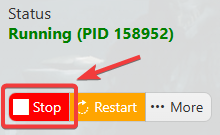
2. Before making any modifications, stop the server from running by clicking the Stop button.
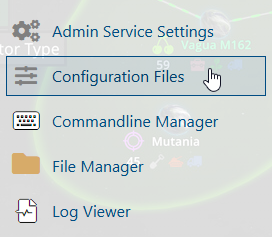
3. Navigate to Configuration Files.
4. In the Configuration Files section, locate the AstroServerSettings.ini file and click Text Editor to open and edit the file.

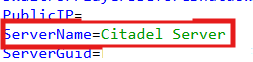
5. In the configuration file, locate the ServerName parameter and enter your preferred name to customize how your server appears to other players.
6. After editing, click the Save button to apply the changes.

