

This guide will show you how to set a New Password for your Astroneer Server
Click here to order your Astroneer server with Citadel Servers today!
Setting a password for your Astroneer server is an effective way to manage access and ensure that only authorized players can join your multiplayer world. Whether you're hosting a private server for friends, organizing a community for selected players, or simply looking to prevent unfamiliar players from joining, configuring a server password provides an additional layer of protection for your game environment. Changing your server password can also be useful if you want to update your existing access credentials, replace a password that has been shared with too many players, or restrict access to a previously public server. By setting a new password, you can maintain better control over who can connect to your server while providing your intended players with a more private and controlled multiplayer experience. In this guide, we'll walk you through the process of setting a new password for your Astroneer server using the server configuration files available through the game server panel. We'll also cover the necessary steps to apply your changes and ensure that the updated password takes effect correctly. Whether you're updating an existing password or configuring one for the first time, following these instructions will help you manage your server's access settings with ease.
Editing the Password Settings on Your Astroneer Server
1. Log in to your Game Control Panel.
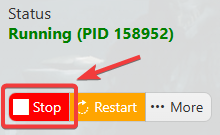
2. Before making any modifications, stop the server from running by clicking the Stop button.
3. Navigate to Configuration Files.
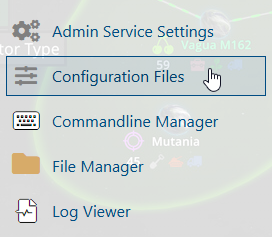
4. In the Configuration Files section, locate the AstroServerSettings.ini file and click Text Editor to open and edit the file.

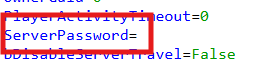
5. In the configuration file, locate the ServerPassword parameter and enter your desired password to restrict access to your server.
6. After editing, click the Save button to apply the changes.

