

This guide will show you how to add and Remove Admins on your Astroneer Server
Click here to order your Astroneer server with Citadel Servers today!
Managing administrator access on your Astroneer dedicated server allows you to control who can access administrative commands and manage important server functions. Whether you're hosting a private server for friends or running a larger multiplayer community, assigning administrator privileges to trusted players can make server management more convenient and efficient. Astroneer provides administrative functionality that allows authorized players to perform certain management tasks, helping you maintain control over your server and its multiplayer environment. By adding trusted players as administrators, you can delegate server management responsibilities without needing to handle every administrative task yourself. Likewise, removing administrator access when it is no longer needed helps maintain proper control over who can use privileged commands. In this guide, we will walk you through the process of adding and removing administrators on your Astroneer server. You will learn how to assign administrator privileges to trusted players through the in-game Server Admin menu, as well as how to manage existing administrators and revoke their permissions when necessary. We will also cover how to configure the primary server owner, allowing you to transfer ownership if you need to assign these responsibilities to another player. Before making any changes, we recommend ensuring that your server is fully stopped when editing its configuration files. It is also good practice to create a backup of your existing configuration to prevent accidental loss of important settings. With the proper administrator permissions in place, you can delegate server management tasks while maintaining a secure, organized, and enjoyable multiplayer experience for everyone.
Adding or Removing Administrator Access on Your Astroneer Server (Primary Admin)
1. Log in to your Game Control Panel.
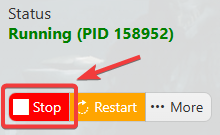
2. Before making any modifications, stop the server from running by clicking the Stop button.
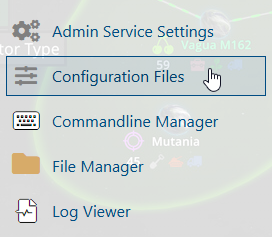
3. Navigate to Configuration Files.
4. In the Configuration Files section, locate the AstroServerSettings.ini file and click Text Editor to open and edit the file.

5. In the configuration file, locate the Server Owner Name field and enter the player's Steam profile name.
Make sure to use their current, customizable Steam display name rather than the username or identifier found in their Steam profile URL.

(Note: The first player to join the server using the specified Steam profile name will be assigned primary administrator privileges once the server completes a manual save or automatic save.)
6. After editing, click the Save button to apply the changes.

Adding or Removing Other Admins on Your Astroneer Server
1. Launch Astroneer and connect to your dedicated server.
2. Navigate to the Server Admin tab and locate the Known Players section. From the list, select the player you want to manage, then select Add to Admins.
3. To remove the player's administrator privileges, select Reset Permissions to revert their permissions to the default player settings.
