
This guide will show you how to Show Players on the Map on your Project Zomboid Server
Click here to order your Project Zomboid server with Citadel today!
In Project Zomboid, knowing where other players are located can make a significant difference in how players explore, survive, and cooperate throughout Knox Country. Whether your community focuses on cooperative survival, resource gathering, base building, or exploring dangerous areas together, displaying other players on the in-game map can make coordination easier and help players stay connected during multiplayer sessions. By configuring the right server setting, server owners can control how player locations appear on the map. Depending on the selected visibility option, players may be able to see other connected players on their map, making it easier to identify teammates, establish meeting points, coordinate supply runs, and reunite with group members who have become separated. This feature can be especially useful for communities that prioritize teamwork and shared exploration. However, player map visibility settings can also influence the overall multiplayer experience. Letting players see one another on the map can simplify navigation and encourage cooperation, while restricting visibility can create a more challenging, immersive survival experience. Server administrators should therefore choose a setting that aligns with their community's preferred playstyle, whether that means enabling shared player locations for cooperative gameplay or limiting visibility for a more demanding survival environment. In this guide, we will explain how to configure your Project Zomboid server to display players on the in-game map. We will walk you through locating the relevant server configuration option and adjusting its value to achieve your preferred player visibility settings. By following these steps, you can customize your server's map behavior and create a multiplayer experience that better suits your community's needs.
Displaying Player Locations In-Game
1. Log in to your Game Control Panel.
2. Before making any modifications, stop the server from running by clicking the Stop button.

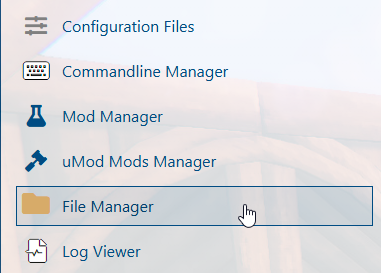
3. Navigate to the File Manager section.
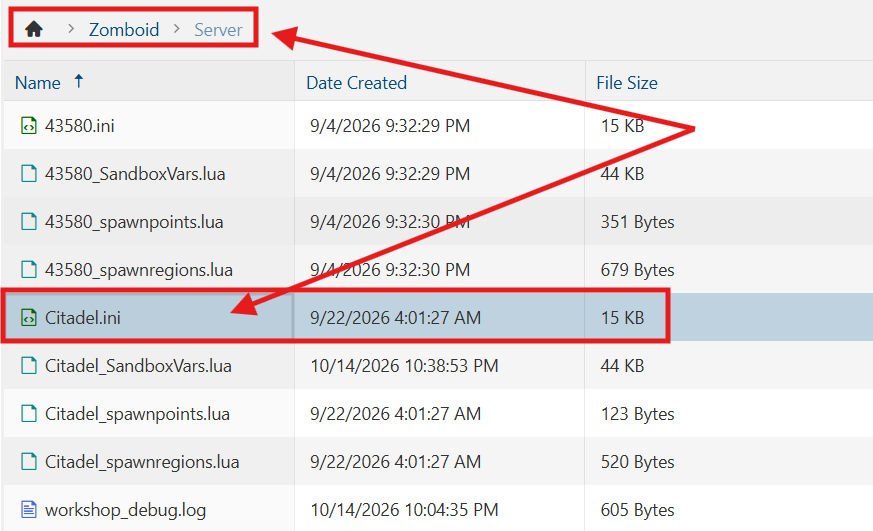
4. Navigate to the /Zomboid/Server directory and locate the [SaveName].ini file, replacing [SaveName] with the name of your server's save.
5. In the configuration file, locate the MapRemotePlayerVisibility= line and set its value to your preferred option to customize how other players appear on the in-game map.

Build 42:
1- No players are visible.2- Faction members are visible.3- Faction members are visible at any distance. Other players are shown if they are near and in line of sight.4- Everyone is visible.
Build 41:
1- No players are visible.2- Faction members are visible.3- Everyone is visible.
6. After editing, click Save to apply the changes.

You can now start playing on your server.
Did the above information not work for you?
Please click here to contact our support via a ticket.
