

This guide will show you how to Adjust Hunger and Thirst Rates on your Project Zomboid Server
Click here to order your Project Zomboid server with Citadel today!
Managing hunger and thirst is a fundamental part of survival in Project Zomboid. As players explore Knox Country, scavenge abandoned buildings, and establish safehouses, they must regularly find food and clean drinking water to maintain their characters' well-being. These survival mechanics add depth to the gameplay by requiring players to plan their supplies, manage their resources, and make careful decisions about how they spend their time. However, the default hunger and thirst rates may not suit every multiplayer server, particularly if you want to create a more relaxed survival experience or introduce a greater level of difficulty for your community. Fortunately, Project Zomboid provides sandbox configuration options that allow server administrators to customize various aspects of survival gameplay, including how quickly characters become hungry and thirsty. By adjusting these settings, you can tailor the rate at which players need to consume food and water to better match your server's intended difficulty and progression. For example, reducing the rate at which hunger and thirst increase can make survival more forgiving, giving players additional time to explore, build bases, and engage in other activities without constantly searching for supplies. Conversely, increasing these rates can create a more demanding experience in which players must prioritize food and water management to survive. In this guide, we will walk you through how to adjust hunger and thirst rates on your Project Zomboid server using the appropriate sandbox configuration settings. You will learn where to locate the relevant configuration file, how to identify the settings responsible for hunger and thirst, and how to modify their values according to your preferred gameplay experience. We will also explain the importance of applying your changes correctly so that the updated settings can take effect on your server. Before making any modifications, it is recommended that you create a backup of your existing configuration file. This allows you to restore your original settings if you encounter unexpected behavior or decide to return to the default survival experience. You should also ensure that your server is stopped before editing its configuration files, as this helps prevent the server from overwriting your changes when it shuts down or saves its settings. Once you have finished editing the relevant parameters, save the file and restart your server if required to apply the changes. Keep in mind that hunger and thirst are separate survival mechanics, and their settings may use different values or scaling behavior depending on your Project Zomboid version. Adjusting these rates may influence how frequently players need to eat or drink, but it does not necessarily change every aspect of food consumption, hydration, or character health. For the best results, review each available setting carefully and test your changes in-game to ensure that the resulting survival experience matches your expectations. By the end of this guide, you will understand how to customize hunger and thirst rates to create a survival environment that suits your community. Whether you are aiming for a casual multiplayer experience with fewer resource-management demands or a hardcore survival challenge that requires careful planning, configuring these settings allows you to fine-tune an important part of your Project Zomboid server's overall gameplay.
Configuring Hunger and Thirst Rates
1. Log in to your Game Control Panel.
2. Before making any modifications, stop the server from running by clicking the Stop button.

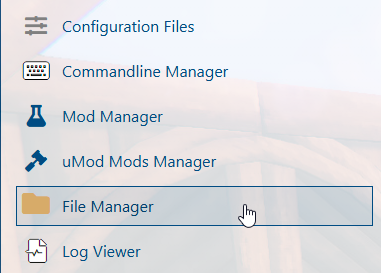
3. Navigate to the File Manager section.
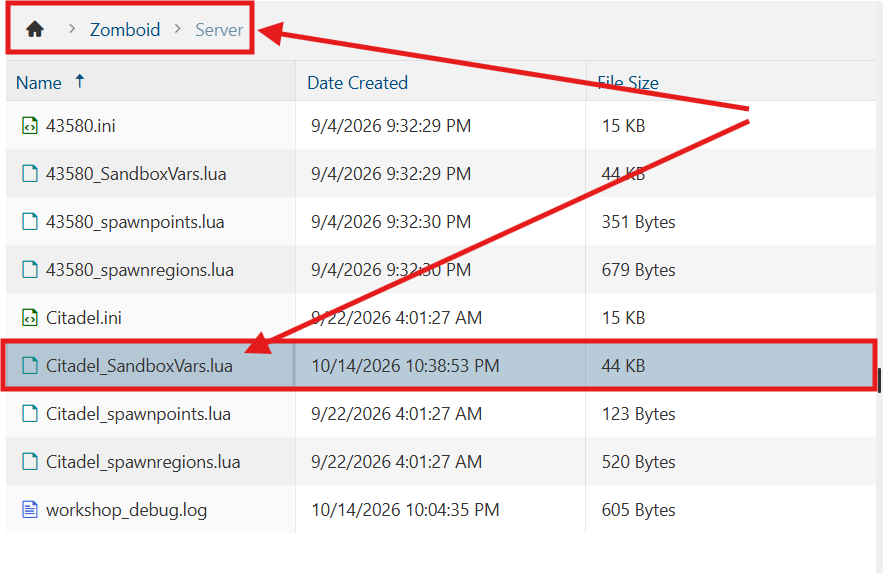
4. Navigate to the /Zomboid/Server directory and locate the [SaveName]_SandboxVars.lua file, replacing [SaveName] with the name of your server's save.
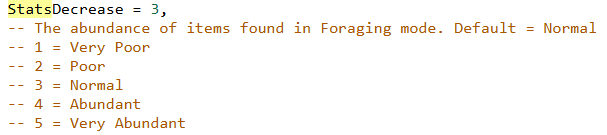
5. In the file, locate the StatsDecrease parameter and adjust its value according to your preferred hunger and thirst rates.
6. After editing, click Save to apply the changes.

You can now start playing on your server.
Did the above information not work for you?
Please click here to contact our support via a ticket.
