

This guide will show you how to modify gas pump configuration settings in Project Zomboid
Click here to order your Project Zomboid server with Citadel today!
Gas pumps play an important role in Project Zomboid, providing players with a valuable source of fuel for their vehicles, generators, and other essential equipment. As players explore Knox Country, gasoline becomes an increasingly important resource for transportation, power generation, and long-term survival. However, the default gas pump settings may not always align with the gameplay experience you want to provide on your multiplayer server. Whether you want to make fuel more accessible, create a more challenging survival environment, or customize resource availability to suit your community, modifying your gas pump configuration settings can help you achieve your desired balance. Project Zomboid allows server administrators to customize various sandbox settings that influence the availability and behavior of resources throughout the game world. Depending on your game version, these settings may include options that affect gas pump fuel availability, allowing you to tailor the experience to your preferred level of difficulty. For example, a server designed for casual gameplay may benefit from more readily available fuel, while a hardcore survival server may require players to carefully manage their gasoline supplies and plan their expeditions around limited resources. In this guide, we will walk you through how to locate and modify the relevant gas pump configuration settings on your Project Zomboid server. You will learn where to find the appropriate sandbox configuration file, how to identify the settings responsible for gas pump behavior, and how to adjust the available values to match your server's requirements. We will also cover important considerations when saving and applying your changes to help ensure that the updated settings take effect as intended. Before making any modifications, it is recommended that you create a backup of your existing configuration file. This allows you to restore your previous settings if an adjustment produces unexpected results. You should also verify the available parameters for your particular Project Zomboid version, as configuration options and their behavior may differ between game versions. Keep in mind that gas pump fuel availability and the ability to extract or use fuel may be influenced by other gameplay mechanics, so changing a single setting may not affect every aspect of fuel management. By the end of this guide, you will have a better understanding of how to customize gas pump settings and tailor fuel availability to your server's gameplay style. With the appropriate configuration changes, you can create a more convenient experience for players or introduce additional resource-management challenges that make surviving in Knox Country even more demanding.
Adjusting Fuel Availability at Gas Stations
1. Log in to your Game Control Panel.
2. Before making any modifications, stop the server from running by clicking the Stop button.

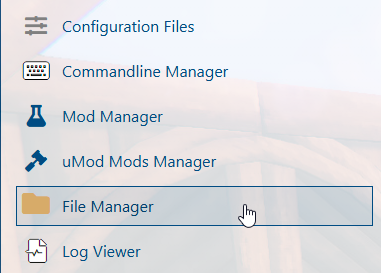
3. Navigate to the File Manager section.
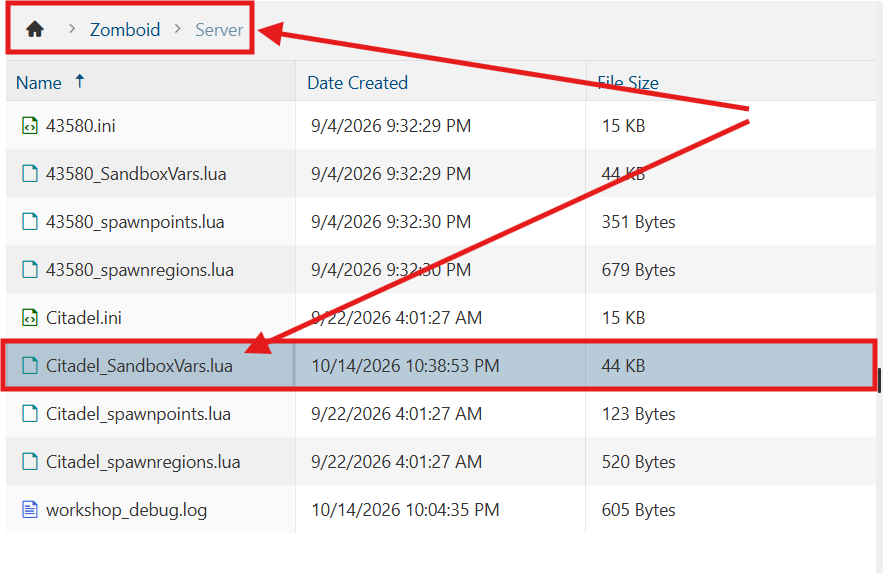
4. Navigate to the /Zomboid/Server directory and locate the [SaveName]_SandboxVars.lua file, replacing [SaveName] with the name of your server's save.
5. In the configuration file, locate the FuelStationGasInfinite parameter and adjust its value as needed.
Refer to the settings listed below to configure gas pump behavior according to your server's preferences.

| Setting | Description |
|---|---|
FuelStationGasInfinite = [true/false] |
If set to true, gas pumps will never run out of fuel. |
FuelStationGasMin = [0-1] |
The minimum amount of gasoline that can spawn in gas pumps. Min: 0.00 Max: 1.00 |
FuelStationGasMax = [0-1] |
The maximum amount of gasoline that can spawn in gas pumps. Min: 0.00 Max: 1.00 |
FuelStationGasEmptyChance = [0-100] |
The chance, as a percentage, that individual gas pumps will initially have no fuel. Min: 0 Max: 100 |
6. After editing, click Save to apply the changes.

You can now start playing on your server.
Did the above information not work for you?
Please click here to contact our support via a ticket.
