

This guide will show you how to Disable War Mechanics on your Project Zomboid Server
Click here to order your Project Zomboid server with Citadel today!
Customizing multiplayer settings on your Project Zomboid server allows you to create a survival environment that matches your community's preferred playstyle. Whether you're hosting a cooperative server focused on surviving the zombie apocalypse, building a long-term settlement with friends, or creating a peaceful environment for players to explore and gather resources, configuring the appropriate gameplay mechanics is essential. If your goal is to minimize conflict between players or prevent certain hostile interactions, understanding the available multiplayer settings can help you create a more cooperative, enjoyable experience. War-related mechanics can affect how players interact with one another, particularly on multiplayer servers where groups may compete for resources, territory, or control over valuable locations. Depending on the gameplay systems and server configuration you're using, these mechanics may contribute to player-versus-player (PvP) encounters, hostile interactions, or conflicts between different groups. For communities that prefer cooperative survival, these interactions can disrupt teamwork, lead to unnecessary losses, and make it more difficult for players to establish secure bases or work together toward shared objectives. Disabling or restricting unwanted combat mechanics can help create a more welcoming environment, especially for casual players and communities that prioritize cooperation over competition. By reviewing your server's multiplayer and PvP settings, you can reduce the likelihood of unwanted confrontations and allow players to focus on scavenging, crafting, farming, constructing bases, and defending their settlements against the undead. These adjustments can be particularly useful for private servers where friends want to progress together without worrying about attacks from other players. However, it's important to understand that Project Zomboid's available configuration options depend on the specific mechanics you want to disable. The game does not necessarily provide a single universal setting called War Mechanics that controls every form of player conflict. Instead, you may need to adjust specific sandbox or server settings related to PvP, player interaction, or other multiplayer features, depending on what your server currently supports. Identifying the correct setting is essential to ensure that your changes produce the intended results without affecting unrelated gameplay features. In this guide, we'll walk you through how to review and configure the relevant settings on your Project Zomboid server to disable or restrict the war-related mechanics you're looking to change. You'll learn where to locate the appropriate configuration options, how to modify the relevant values, and how to apply your changes so that your server better reflects your preferred multiplayer experience. Whether you're aiming to reduce player hostility, prevent PvP combat, or encourage a cooperative survival environment, these adjustments can help you create a server that better suits your community. Before modifying any configuration files, we recommend stopping your server and creating a backup of your existing settings. This precaution helps protect your current configuration and allows you to restore it if an adjustment produces unexpected results. Once you've made your changes, save the configuration file and restart the server if necessary. You should then join the server and test the relevant interactions to verify that the settings behave as intended. By the end of this guide, you'll have a clearer understanding of how to configure the relevant multiplayer mechanics on your Project Zomboid server. With the appropriate settings in place, you can create a more cooperative survival experience where players can work together, build lasting communities, and focus on surviving the apocalypse rather than engaging in unwanted conflicts.
Disabling War Mechanics
1. Log in to your Game Control Panel.
2. Before making any modifications, stop the server from running by clicking the Stop button.

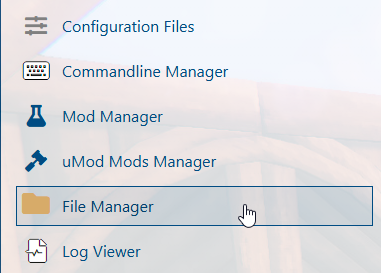
3. Navigate to the File Manager section.
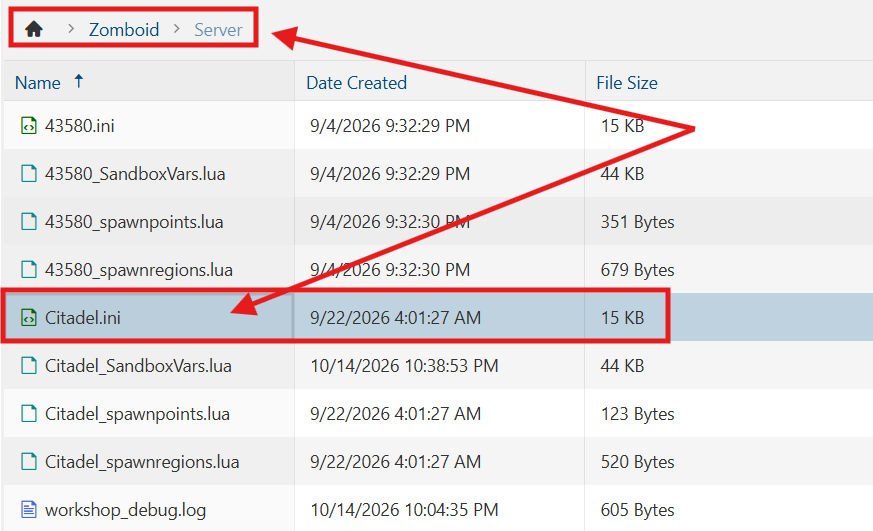
4. Navigate to the /Zomboid/Server directory and locate the [SaveName].ini file, replacing [SaveName] with the name of your server's save.
5. In the configuration file, locate the War= line and set its value to false to disable war mechanics on your Project Zomboid server.

6. After editing, click Save to apply the changes.

You can now start playing on your server.
Did the above information not work for you?
Please click here to contact our support via a ticket.
