
This guide will show you how to Customize Multiplayer Voice Chat on your Project Zomboid Server
Click here to order your Project Zomboid server with Citadel today!
Voice chat is an important part of the multiplayer experience in Project Zomboid, allowing players to communicate with one another, coordinate survival strategies, share resources, and warn teammates about nearby zombies and other dangers. As a server owner, customizing your voice chat settings can help you create a communication system that suits your community's preferences, whether you are hosting a cooperative survival world, a roleplaying server, or a challenging multiplayer environment where communication plays a vital role in survival. Project Zomboid includes several voice communication options that influence how players interact with one another in-game. Depending on your server configuration and game version, these settings may control voice chat availability, microphone input, voice transmission distance, and other aspects of in-game communication. For example, proximity-based voice chat can encourage realistic interactions by limiting conversations to nearby players, while adjusting the relevant settings can help accommodate different playstyles and community requirements. In this guide, we'll walk you through how to customize multiplayer voice chat on your Project Zomboid server by accessing and modifying the appropriate server configuration settings. You'll learn where to locate the relevant options and how to adjust them to better suit your preferred gameplay experience. Before making any changes, we recommend stopping your server and creating a backup of your existing configuration files to preserve your current settings. Once you've finished editing the configuration, save your changes and restart the server if required to apply the updated settings. Important: Server-side voice chat settings do not necessarily control every aspect of voice communication. Individual players may also need to configure their microphones, audio devices, and voice chat options in their game settings. If voice chat does not work as expected after updating your server configuration, testing with multiple players and checking their local audio settings can help determine whether the issue is related to the server or an individual player's setup.
Configuring Voice Settings
1. Log in to your Game Control Panel.
2. Before making any modifications, stop the server from running by clicking the Stop button.

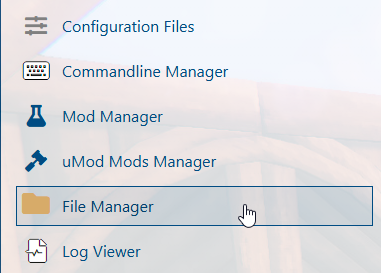
3. Navigate to the File Manager section.
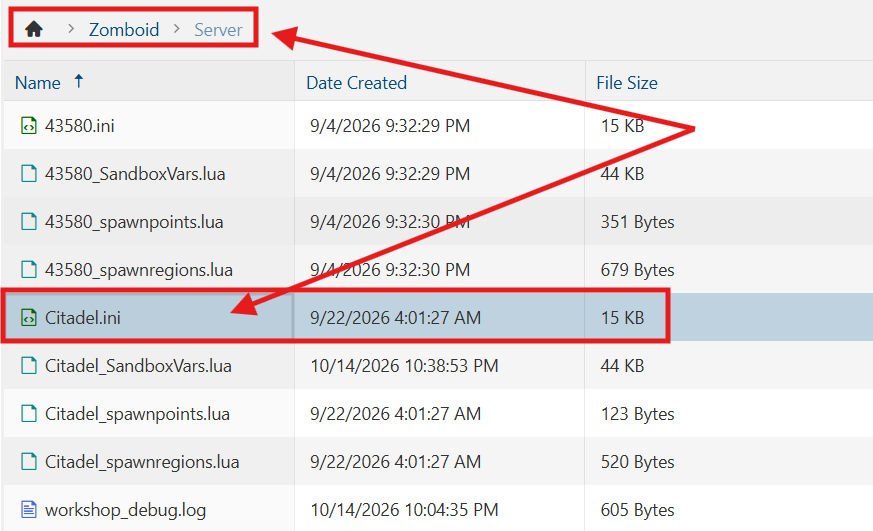
4. Navigate to the /Zomboid/Server directory and locate the [SaveName].ini file, replacing [SaveName] with the name of your server's save.
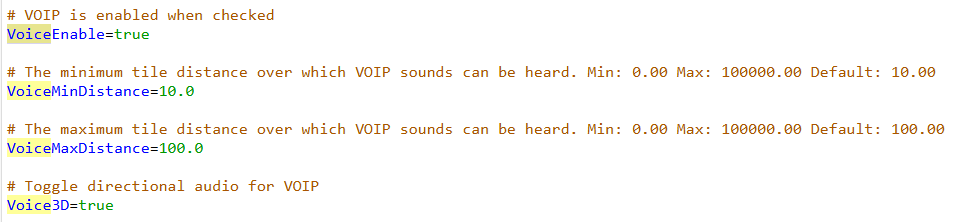
5. In the configuration file, locate the VoiceEnable= line and set its value to true to enable voice communication (VoIP).
You can also adjust the other available voice chat settings as desired to customize the in-game communication experience on your server.
6. After editing, click Save to apply the changes.

You can now start playing on your server.
Did the above information not work for you?
Please click here to contact our support via a ticket.
