

This guide will show you how to Adjust Vehicle Settings for your Project Zomboid Server
Click here to order your Project Zomboid server with Citadel today!
Vehicles play an important role in Project Zomboid, allowing players to travel across the map, transport supplies, escape dangerous situations, and explore locations more efficiently. As a server owner, you can customize various vehicle settings to tailor the gameplay experience to your community's preferences. Whether you want vehicles to be more common, make finding a functional car more challenging, or create a harsher survival environment where transportation is limited, adjusting your server's vehicle configuration can help you achieve your desired balance. Project Zomboid provides several vehicle-related settings that influence how vehicles appear throughout the world, their availability, and certain aspects of their condition and distribution. By modifying these options, you can make vehicles easier or harder to find, adjust their overall abundance, and create a more immersive survival experience. For example, a server designed for casual gameplay may benefit from a higher vehicle spawn rate, while a hardcore survival server may offer fewer vehicles to encourage players to explore on foot and manage their resources carefully. In this guide, we'll walk you through how to adjust vehicle settings on your Project Zomboid server using the server configuration files. You'll learn where to find the relevant settings, how to modify their values, and how to apply the changes to your server. Before making any modifications, we recommend stopping your server and creating a backup of your existing configuration files to prevent accidental loss of your current settings. Once you've saved your changes, restart the server and check the in-game results to ensure the configuration behaves as expected.
Note: Some vehicle settings, particularly those that affect vehicle distribution or spawning, may only apply when the world or relevant areas are generated. Existing vehicles may not automatically change when you update these options, so the results can vary depending on your current world and save data.
Configuring Vehicle Settings
1. Log in to your Game Control Panel.
2. Before making any modifications, stop the server from running by clicking the Stop button.

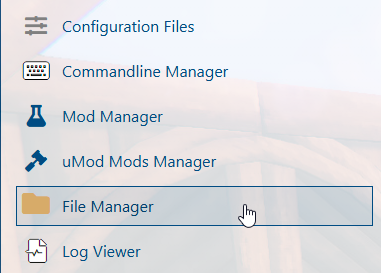
3. Navigate to the File Manager section.
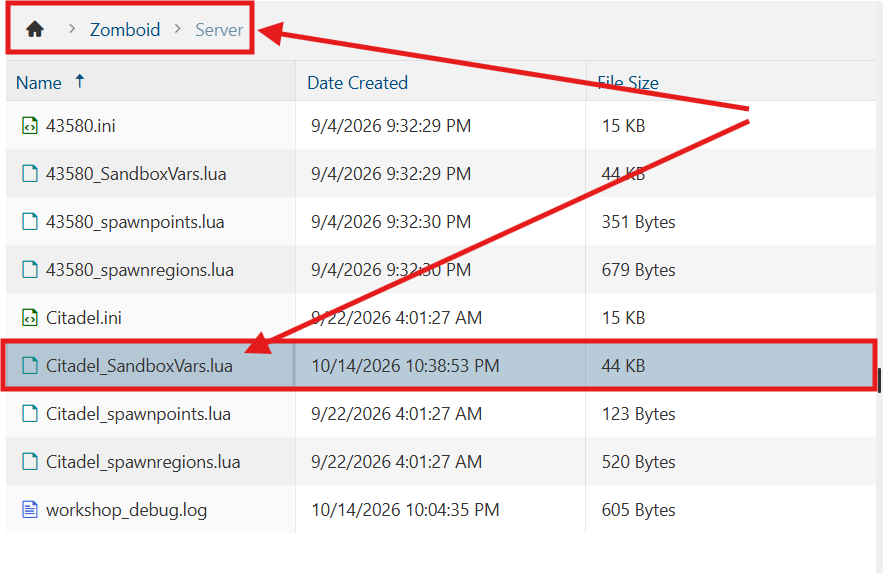
4. Navigate to the /Zomboid/Server directory and locate the [SaveName]_SandboxVars.lua file, replacing [SaveName] with the name of your server's save.
5. In the configuration file, locate the relevant Vehicle Settings and adjust their values as desired to customize vehicle behavior and availability on your server.
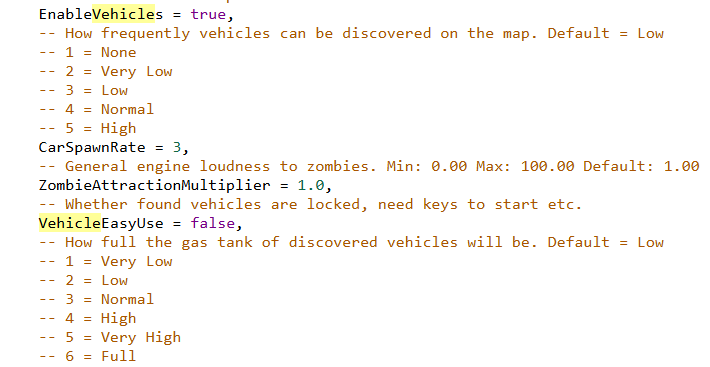
(Note: For settings with a defined range of values (such as 1–4), higher values generally result in increased frequency or greater quantities, depending on the specific setting.)
| Setting | Description |
|---|---|
EnableVehicles = [true/false] |
Sets if vehicles can spawn. |
VehicleEasyUse = [true/false] |
Whether vehicles spawn locked or need keys. |
RecentlySurvivorVehicles = [1-4] |
How frequently cars in good condition can be found. |
ZombieAttractionMultiplier = [Value] |
Sets the general engine loudness to zombie. |
CarSpawnRate = [1-5] |
How frequently vehicles can be found. |
ChanceHasGas = [1-3] |
The chances of finding vehicles with fuel. |
InitialGas = [1-6] |
How full vehicle gas tanks will be when found. |
CarGasConsumption = [Value] |
The rate at which vehicles consume gas. |
LockedCar = [1-6] |
How likely cars are to be locked. |
CarGeneralCondition = [1-5] |
The general condition of cars around the map. |
TrafficJam = [true/false] |
Sets if traffic jams containing wrecked cars can appear. |
CarAlarm = [1-6] |
How frequently cars will be discovered with active alarms. |
PlayerDamageFromCrash = [true/false] |
Sets whether a player can become injured from car accidents. |
CarDamageOnImpact = [1-5] |
Sets the amount of damage dealt to vehicles when they crash. |
SirenShutoffHours = [Value] |
How many in-game hours before an active siren will shut off. |
DamageToPlayerFromHitByACar = [1-5] |
Sets the amount of damage received by players when a vehicle hits them. |
SirenEffectsZombie = [true/false] |
Sets whether vehicle sirens attract zombies. |
6. After editing, click Save to apply the changes.

You can now start playing on your server.
Did the above information not work for you?
Please click here to contact our support via a ticket.
