

This guide will help you How to Switch Game Modes on your DeadPoly Server
Click here to order your DeadPoly server from Citadel today!
DeadPoly offers different gameplay experiences, and selecting the appropriate game mode for your server can help you customize how players interact with the game world. Whether you want to create a more challenging survival experience, provide a more relaxed environment for your community, or adjust the gameplay to better suit your preferred playstyle, changing your server's game mode is an important part of configuring your DeadPoly dedicated server. Depending on the available game modes and server configuration options, switching game modes may affect various aspects of gameplay, including survival mechanics, player interactions, difficulty, and other gameplay-related settings. Choosing the right mode can help you create a server that aligns with your community's preferences, whether you are hosting a private server for friends or managing a public server for a larger group of players. In this guide, we will walk you through the process of switching game modes on your DeadPoly server using your game server control panel. We will explain how to locate the relevant configuration settings, apply your preferred game mode, and ensure that your changes take effect. Before making any changes, we recommend stopping your server to prevent configuration conflicts and creating a backup of your existing server files and settings. Once the configuration has been updated, you can restart your server and verify that the selected game mode has been applied successfully. By following these instructions, you can manage your DeadPoly server's game mode settings more confidently and tailor the gameplay experience to meet your preferences and those of your players.
Switching Game Modes
1. Log in to your Game Control Panel.
2. Before making any modifications, stop the server from running by clicking the Stop button.

3. Navigate to the Configuration Files section.
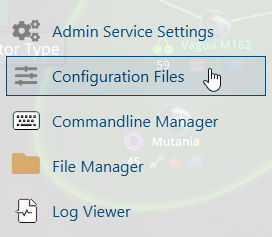
4. In Configuration Files, look for the Game.ini file and click the Config Editor beside the Text Editor.

5. In the Config Editor, locate the Mode parameter and update its value to the game mode you want to use on your DeadPoly server.
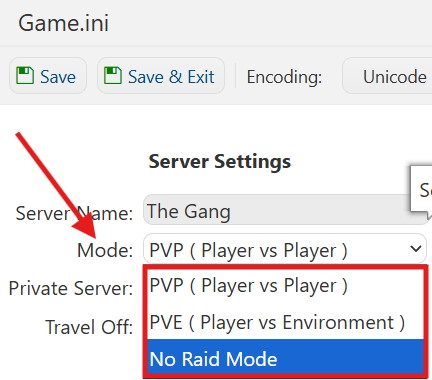
6. After editing, click Save to apply the changes.

If you prefer to modify the server name directly within the configuration file instead of using the UI, click Text Editor next to Config Editor and make your changes there.
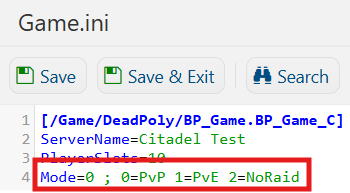
You can now start playing on your server.
Did the above information not work for you?
Please click here to contact our support via a ticket.
