This guide will help you learn how to load a Prospect into your ICARUS Server
Rent an Icarus Server with Citadel Servers Today
Loading a Prospect into your ICARUS server is an essential step when setting up a new session, restoring an existing game environment, or preparing a specific Prospect for you and your players. Unlike starting a Prospect through the standard in-game interface, running one on a dedicated server requires the appropriate server configuration and a clear understanding of how Prospects are identified and loaded. This guide walks you through the process of loading a Prospect into your ICARUS server, from identifying the Prospect you want to use to configuring the server and verifying that it loads correctly. It is designed to help server administrators and players get a dedicated-server Prospect up and running while minimizing common configuration issues. Before beginning, make sure your ICARUS dedicated server is installed and operational, and that you have access to the server's configuration files and the necessary permissions to modify them. It is also helpful to know the name or identifier of the Prospect you intend to load, particularly if you are working with a specific mission, map, or previously configured session. The exact steps may vary depending on your server setup and the version of ICARUS you are running. Server configuration options can also change as the game is updated, so always take your current server version into account when following the instructions. By the end of this guide, you should understand how to configure your ICARUS server to load the desired Prospect, start the server with the appropriate settings, and confirm that the Prospect is available and functioning as expected. The guide also covers important considerations and common issues that may prevent a Prospect from loading correctly.
Loading a Prospect on Your Icarus Server
1. Connect to the server and log in with administrator privileges. For instructions on logging in as an administrator, refer to this guide.
2. Press Enter to open the chat window, then enter and execute the following command:
/ReturnToLobby
3. Click RETURN, then reconnect to the server to apply the changes.
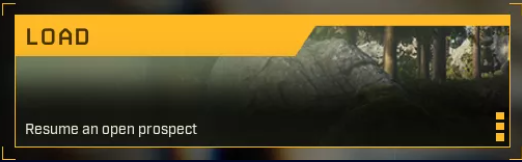
4. Select LOAD, choose the desired Prospect, and then click RESUME PROSPECT to continue.