

This guide will help you learn how to add an Admin to your ICARUS Server
Rent an Icarus Server with Citadel Servers Today
Managing an ICARUS server is much easier with a trusted player who can help handle administrative tasks. Whether you’re running a private server for friends, hosting a dedicated community server, or managing a larger multiplayer group, adding another admin can give you the extra control and flexibility you need to keep things running smoothly. In ICARUS, server administrators have access to additional permissions and tools that regular players do not. These privileges can help you manage players, handle server issues, configure gameplay, and perform other administrative tasks. However, admin access should only be given to people you trust, since administrative privileges can significantly affect your server and the experience of other players. Fortunately, adding an admin to an ICARUS server is relatively straightforward once you know where to find the appropriate server configuration and how to assign the required permissions. In this guide, we’ll walk you through the process step by step, explain what you need before getting started, and show you how to properly add a player as an admin. Whether you’re adding your first administrator or giving additional permissions to a member of your server team, this guide will help you get admin access configured correctly and get your new administrator ready to manage the server.
Adding Admins on Your Icarus Server
1. Log in to your Game Control Panel and navigate to your service.
2. Before making any changes, ensure that your server is fully stopped.
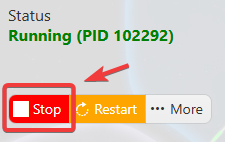
This helps prevent configuration changes from being overwritten or reverted to their default values.
3. Navigate to the Configuration Files tab to access your server’s configuration settings.
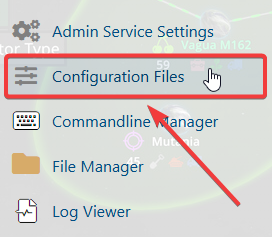
4. In the Configuration Files section, locate the serversettings.ini file, then click Text Editor to open and modify the server settings.

5. In the configuration file, locate the AdminPassword setting and assign a secure password of your choice.
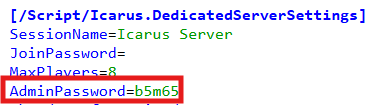
6. Once you have finished editing the settings, click the Save button to apply the changes to your server.

7. Launch the game and connect to your ICARUS server using your server credentials.
8. Press Enter to open the in-game chat, then enter the following command to authenticate as an administrator:
/AdminLogin [Admin Password]
Replace [Admin Password] with the administrator password configured in your server settings.
You have now been successfully authenticated as an administrator and can use the available admin commands on the server.
