

This guide will show you how to Set Up and configure the Randomizer on your Palworld Server
Not a client yet? Order a Palworld Server today with Citadel Servers
The Randomizer Settings on your Palworld server allow you to customize randomized gameplay elements, giving you greater control over how certain aspects of the game are generated and experienced by players. By adjusting these settings, you can tailor your server to provide a fresh and unpredictable adventure, encourage exploration, and introduce additional variety to your multiplayer world. Whether you're hosting a casual server for friends or managing a dedicated server for a larger community, configuring the randomizer can help you create a gameplay experience that suits your preferred playstyle. Setting up the randomizer allows you to customize the available randomization options according to your server's configuration and the features supported by your version of Palworld. Depending on the specific settings available, these options may influence how randomized elements behave in your world, adding variety to exploration, encounters, or other supported gameplay mechanics. Adjusting these options can help you create a more challenging experience for experienced players or introduce an element of surprise for those looking to try something different. In this guide, we'll walk you through how to access your Palworld server's configuration settings, locate the available Randomizer Settings, and adjust them to match your preferences. We'll also cover how to save your changes and restart your server when necessary to ensure the updated configuration is applied correctly. Before making any changes, we recommend creating a backup of your existing configuration files so you can restore your previous settings if needed. By following this guide, you'll be able to manage your Palworld server's randomizer configuration more confidently and customize your server to deliver a unique gameplay experience for you and your players.
Customizing Randomizer Settings
1. Log in to your Game Control Panel.
2. Before making any modifications, stop the server from running by clicking the Stop button.

3. Navigate to the Configuration Files section.
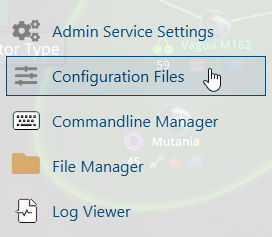
4. In Configuration Files, look for the Pal\Saved\Config\WindowsServer\PalWorldSettings.ini file and click the Text Editor beside the Config Editor.

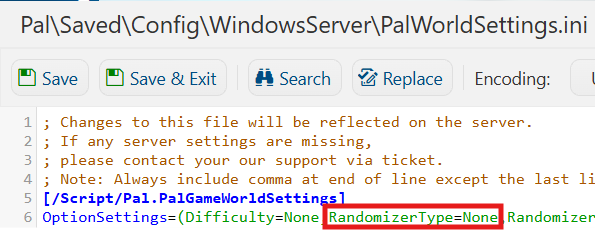
5. In the Text Editor, locate the Randomizer Type setting and select your preferred option from the available settings.
In the Randomize Wild Pal Levels section, set to True to randomize the levels of wild Pals encountered throughout the game world.
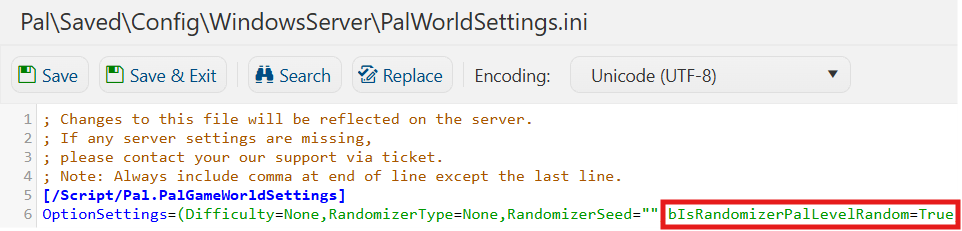
6. After editing, click Save to apply the changes.

You can now start playing on your server.
Did the above information not work for you?
Please click here to contact our support via a ticket.
