

This guide will show you how to Manage Ranch Production Speed on your Palworld Server
Not a client yet? Order a Palworld Server today with Citadel Servers
Managing the Ranch Production Speed on your Palworld server allows you to control how quickly Pals assigned to Ranches produce items. Adjusting this setting can significantly influence resource generation and progression, making it useful for customizing the overall pace and difficulty of your server. Increasing the Ranch Production Speed allows items to be produced more quickly, reducing the amount of time players need to wait for Ranch-related resources. This can be beneficial for servers that favor faster progression, convenience, or increased resource availability. Conversely, lowering the production speed increases the time required for Ranches to generate items, providing a slower and potentially more challenging progression experience. The setting works as a multiplier, allowing you to fine-tune production speed according to your server's preferences. Higher multiplier values increase the production speed, while lower values reduce it. For example, a value of 2.0 generally makes Ranch production occur twice as quickly as the default rate. When adjusting this setting, it is important to consider how quickly resources will accumulate on your server. Extremely high production rates can make certain resources much easier to obtain and may affect the intended balance of progression. In this guide, we'll explain how to locate the Ranch Production Speed setting in your Palworld server configuration, adjust its multiplier to your preferred value, and apply the changes correctly. This allows you to create a Ranch production system that better matches your server's desired gameplay experience.
Managing Ranch Production Speed
1. Log in to your Game Control Panel.
2. Before making any modifications, stop the server from running by clicking the Stop button.

3. Navigate to the Configuration Files section.
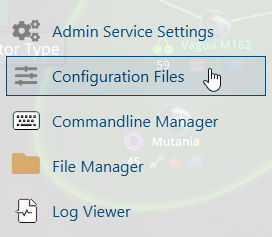
4. In Configuration Files, look for the Pal\Saved\Config\WindowsServer\PalWorldSettings.ini file and click the Text Editor beside the Config Editor.

5. In the Text Editor, locate the MonsterFarmActionSpeedRate setting and enter your desired value between 0.5 and 3.0. Higher values increase the speed of Ranch production, while lower values decrease it.
If the parameter is not present in the configuration file, you can add it manually at the end of the file.

6. After editing, click Save to apply the changes.

You can now start playing on your server.
Did the above information not work for you?
Please click here to contact our support via a ticket.
