

This guide will show you how to Manage Guild Settings on your Palworld Server
Not a client yet? Order a Palworld Server today with Citadel Servers
Guilds are an important part of the multiplayer experience in Palworld, letting players work together, share resources, and build a community on the same server. As a server owner, you can customize how guilds operate to better match your preferred gameplay experience and the needs of your player community. Adjusting the Guild Settings can help you control various aspects of guild functionality, such as how players interact with guilds, the number of members a guild can accommodate, and other guild-related mechanics. These options can be particularly useful for private servers, community servers, or larger multiplayer environments where you want to establish specific limits or rules for guilds. In this guide, we’ll walk you through how to manage the Guild Settings on your Palworld server, including where to locate the relevant configuration options and how to adjust them to your preferred values. Before making any changes, we recommend creating a backup of your server configuration to ensure you can restore your previous settings if necessary.
Configuring Guild Settings
1. Log in to your Game Control Panel.
2. Before making any modifications, stop the server from running by clicking the Stop button.

3. Navigate to the Configuration Files section.
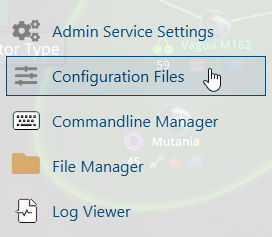
4. In Configuration Files, look for the Pal\Saved\Config\WindowsServer\PalWorldSettings.ini file and click the Text Editor beside the Config Editor.

5. In the Text Editor, locate the Guild Settings and adjust the available parameters according to your preferred server configuration.
Review each setting carefully before saving your changes to ensure the guild mechanics align with your desired gameplay experience.
| Setting | Description |
|---|---|
| Auto Reset Inactive Guilds | Automatically deletes a guild, including its structures and base Pals, if no members log into the server. |
| Inactive Guild Timer | The amount of time in real-world hours before an inactive guild is deleted. This only applies if Auto Reset Inactive Guilds is enabled. |
| Max Players per Guild | The maximum number of players allowed to join a single guild. |
| Max Camps per Guild | The maximum number of bases that a single guild can build. It can be increased up to a maximum of 10. Unlocked gradually in-game as the base level increases. |
6. After editing, click Save to apply the changes.

You can now start playing on your server.
Did the above information not work for you?
Please click here to contact our support via a ticket.
