
This guide will help you How to Configure Your Assetto Corsa Competizione Server
Your Race Starts Here: Get Your ACC Server from Citadel Servers Today
Setting up your own Assetto Corsa Competizione (ACC) server is a great way to create a dedicated racing environment for friends, communities, leagues, or competitive events. Instead of relying on public servers with predefined settings, a dedicated server gives you much greater control over how races are hosted, from track selection and session schedules to weather, car restrictions, assists, and other gameplay settings. However, configuring an ACC server can be confusing when you're doing it for the first time. The server relies on a collection of configuration files, each responsible for different aspects of the racing experience. A small mistake in one of these files can result in unexpected settings, connection issues, or a server that doesn't appear correctly in the multiplayer server list. In this guide, we'll walk you through how to configure your Assetto Corsa Competizione server step by step. You'll learn where the configuration files are located, which settings you need to modify, and how to customize your server to suit casual multiplayer races, organized leagues, or more competitive events. Whether you're creating a private server for a few friends or setting up a larger ACC racing community, understanding the server configuration will give you the flexibility to build the exact racing experience you want. By the end of this guide, you'll have a properly configured ACC server and a better understanding of how to adjust its settings for future races and events.
Configuring Your Assetto Corsa Competizione Server
1. Log in to your Game Control Panel and navigate to your service.
2. Before making any changes, ensure that your server is fully stopped.
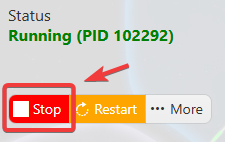
This helps prevent configuration changes from being overwritten or reverted to their default values.
3. Navigate to the Configuration Files tab to access your server’s configuration settings.
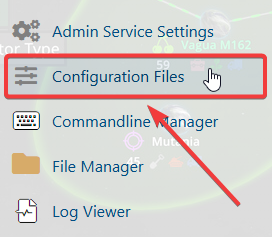
4. In the Configuration Files section, locate the settings.json file, then click Text Editor to open and modify the server settings.

5. Adjust the configuration options as needed to achieve your preferred racing experience.
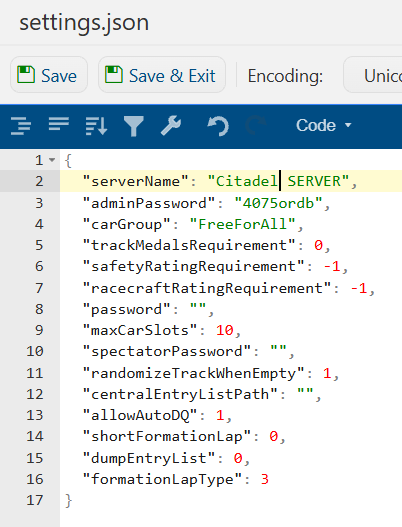
6. Once you have finished editing the settings, click the Save button to apply the changes to your server.