
This guide will help you with how to Set Up Property Purchase and Sale Options on your Schedule 1 Server
Click here to order your Schedule I server with Citadel Servers today!
In Schedule 1, property purchase and sale options let players manage their in-game properties and decide whether to expand or adjust their operations. Configuring these options on your dedicated server can help you customize the property management experience better to suit your server's gameplay preferences and multiplayer environment. In this guide, we will walk you through the process of setting up property purchase and sale options on your Schedule 1 Dedicated Server. You will learn how to access the relevant configuration settings and adjust the available options to suit your server's requirements. Follow the instructions below to configure your property settings and provide a gameplay experience that aligns with your preferences and those of your players.
Property Buying and Selling Settings
1. Log in to your Game Control Panel.
2. Before making any modifications, stop the server from running by clicking the Stop button.

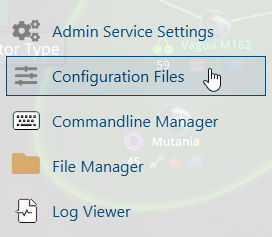
3. Navigate to the Configuration Files section.
4. In the configuration files, locate the Enable Property Protection setting and change its value to Enabled.
(Note: Property Protection enables property protection settings to prevent players from griefing or interfering with other players' properties. However, enabling this feature will disable Ray's Real Estate while Property Protection is active.)
5. Adjust the property settings as needed. These settings apply to both residential properties and businesses.
| Setting | Description |
|---|---|
Property Price Multiplier |
Enter the multiplier number to raise or lower the price of properties based on the base value. |
Allow Property Buying |
Enable or disable the ability to purchase housing and businesses. |
Property Sell Percent |
Enter 0 - 100 as a refund percentage of the original price of the property. |
Allow Property Selling |
Enable or disable the ability to sell owned housing and businesses. |
Max Properties per Player |
Enter the number of housing or businesses a player can own. |
6. After editing, click Save to apply the changes.

Did the above information not work for you?
Please click here to contact our support via a ticket.
