

This quickstart guide will help you jumpstart your adventure on your Kenshi OM server.
Click here to order your Kenshi Online Multiplayer with Citadel Servers today!
Stepping into the harsh, unpredictable world of Kenshi is already a test of survival, but experiencing it alongside other players transforms the journey into something entirely new. The Kenshi Online Multiplayer Quickstart Guide is designed to help you jump straight into cooperative (or competitive) wasteland adventures with minimal setup and maximum clarity. Whether you're teaming up to build a thriving settlement, roaming the desert as a squad of mercenaries, or simply trying to survive your first night together, this guide walks you through the essential steps to get online, configure your game, and start playing smoothly with friends. Kenshi’s multiplayer mods open the door to shared stories, emergent chaos, and unforgettable moments. This guide ensures you spend less time troubleshooting and more time forging your legend in the unforgiving sands of the world
Connecting to your Kenshi OM Server
1. Log in to your Game Control Panel.
2. Copy the Connection Info or Query Info IP/Port listed.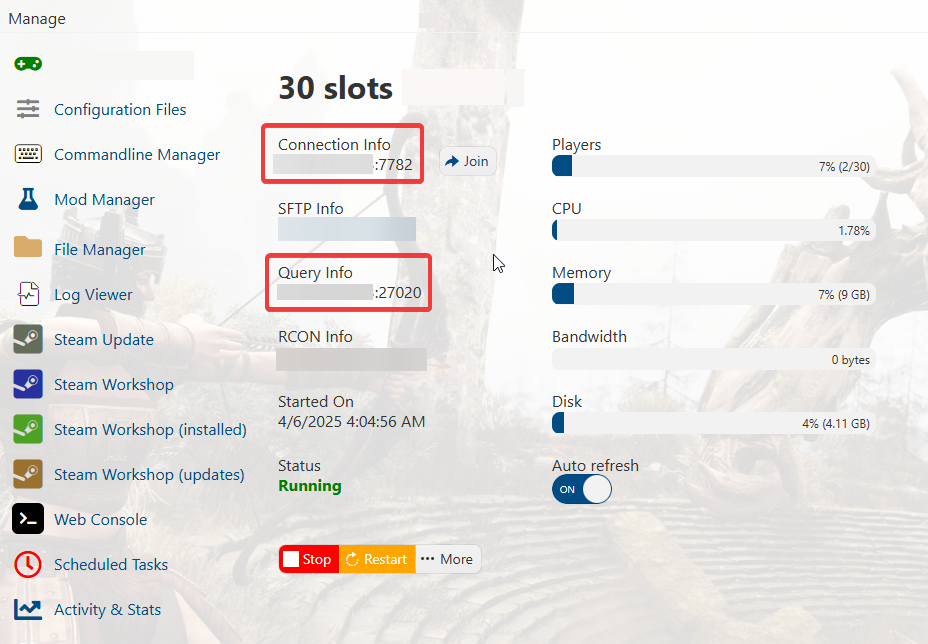
3. Open Steam. Click the View tab, then click Game Servers.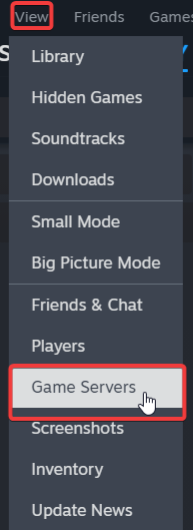
4. Click on the Favourites tab, then click the + sign and Add Server.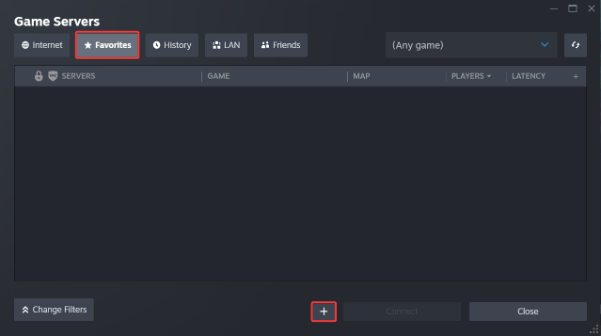
5. Paste in your server's Connection Info or Query Info IP/Port.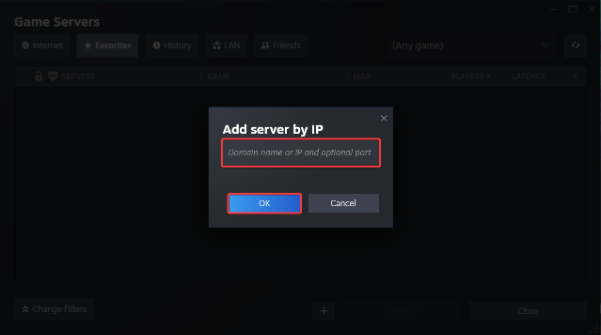
6. Click Connect.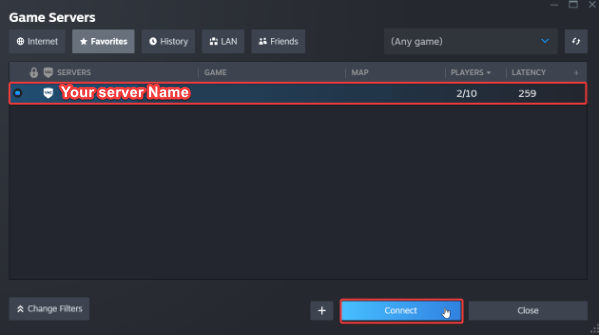
7. You can also use the Connection Info to directly connect
via the games In-Game server browser or Launcher.
To edit server settings, follow these steps:
1. Log in to your Game Control Panel.
2. Open the Configuration Files and Commandline Manager.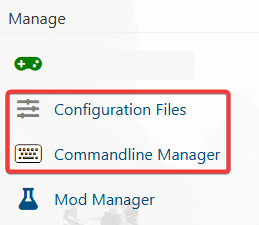
3. For the Configuration Files, select the “Config Editor” Button.
A pop-up will appear with settings you can change easily, like Server Name and Password.
You can also use “Text Editor” to change the configuration contents directly.
4. For the Commandline Manager, select what commandline you want activated.
There is usually a default line and a modded line for our Control Panels.
Press Modify on the one you want and edit the available settings like Server Name and Password.
There are also options to edit the mods and configs to load on the Command Line.
Once you have finished editing, hit apply at the bottom when done.
Did the above information not work for you?
Please click here to contact our support via a ticket.