

This guide will show you how to adjust the Pal Capture Rate on your Palworld Server
Not a client yet? Order a Palworld Server today with Citadel Servers
If you want to customize how easily players can capture Pals on your Palworld server, you can adjust the Pal Capture Rate to better match your server's preferred level of difficulty. This setting controls the effectiveness of Pal Spheres when attempting to capture wild Pals, allowing you to make captures easier or more challenging for your players. Increasing the Pal Capture Rate makes it easier for players to successfully capture Pals, which can be useful for servers focused on faster progression, casual gameplay, or reducing the time required to build a collection of Pals. Lowering the value, on the other hand, makes capturing Pals more difficult and can provide a more challenging or progression-focused experience. This setting can be customized directly through your server's configuration files, giving you greater control over the overall gameplay experience without requiring additional mods or plugins. In this guide, we'll walk you through how to locate the appropriate configuration file, find the Pal Capture Rate setting, adjust its value according to your preferences, and apply the changes to your Palworld server.
Modifying the Pal Capture Rate
1. Log in to your Game Control Panel.
2. Before making any modifications, stop the server from running by clicking the Stop button.

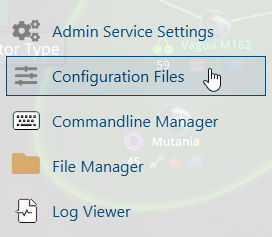
3. Navigate to the Configuration Files section.
4. In Configuration Files, adjust the Pal Capture Rate to your desired value. Increasing the value will make Pals easier to capture, while lowering the value will make them more difficult to capture.
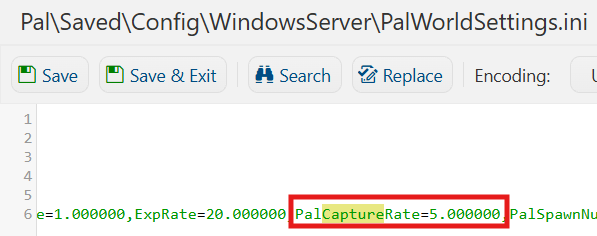
(Note: This setting functions as a multiplier, meaning that a value of 2.0 will double the Pal Capture Rate, making Pals twice as easy to capture.)
6. After editing, click Save to apply the changes.

You can now start playing on your server.
Did the above information not work for you?
Please click here to contact our support via a ticket.
