

This guide will show you how to Allow Cheats on your Necesse Server
Looking for a Necesse game server? Click here to order your server!
Running a multiplayer server in Necesse offers an engaging mix of sandbox survival, colony management, and action-RPG dungeon crawling. However, managing a shared world often requires administrative intervention. Whether you need to spawn rare building materials for a grand settlement build, teleport to a stranded player, or test tough boss encounters, enabling cheats and administrative privileges gives server owners total control over their game world. By default, Necesse restricts developer console commands and item spawning to maintain fair gameplay and standard progression. Enabling cheats grants server administrators access to powerful, real-time command tools that bypass standard survival constraints. Whether you are hosting a local peer-to-peer game with friends or configuring a dedicated Linux/Windows server, enabling administrative permissions can be completed in just a few quick steps using configuration files or console commands.
Enabling Cheats to Your Server
1. Log in to your Game Control Panel and navigate to your service.
2. Before making any changes, ensure that your server is fully stopped.
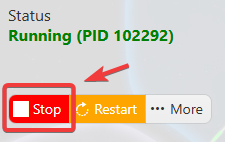
This helps prevent configuration changes from being overwritten or reverted to their default values.
3. Navigate to the Configuration Files tab to access your server’s configuration settings.
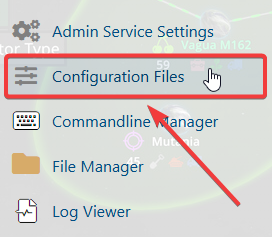
4. In the configuration files, navigate to cfg\server.cfg, then select Config Editor to open the file.

5. Locate the Allow Cheats setting within the file and enable it by changing the value to Enabled.
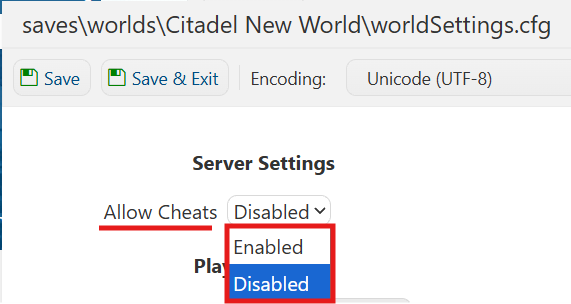
6. Once you have finished editing the settings, click the Save button to apply the changes to your server.

If you prefer to modify the server name directly within the configuration file instead of using the UI, click Text Editor next to Config Editor and make your changes there.
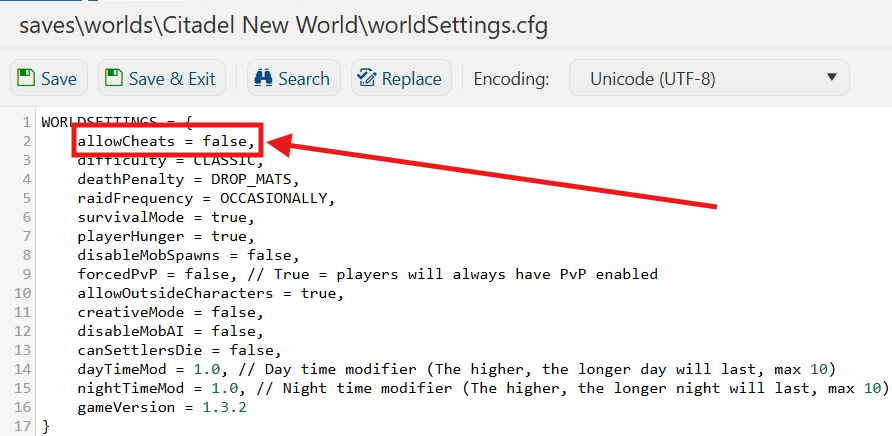
Using the Text Editor allows you to preserve custom configurations, such as installed mods and custom scenarios, without having them overwritten or affected by the preset settings in the Config Editor.
