
This guide will show you how to toggle PvP Settings on your Necesse Server
Looking for a Necesse game server? Click here to order your server!
When setting up a multiplayer server in Necesse, striking the right balance between cooperative exploration and intense player-versus-player combat is key to defining your community's playstyle. Whether you are building a peaceful world for friends to slay bosses together without accidental friendly fire, or creating a chaotic survival world where every player is a potential target, knowing how to configure your player-versus-player (PvP) settings is an essential server administration skill. Necesse provides server owners with flexible ways to adjust these rules, allowing you to toggle PvP globally, modify settings on the fly through in-game admin commands, or permanently edit server configuration files for dedicated hosts. In this guide, you will learn step-by-step how to toggle PvP settings on your Necesse server, inspect current world rules, and ensure your multiplayer environment is tailored exactly to your players' needs.
Enabling & Disabling PvP
1. Log in to your Game Control Panel and navigate to your service.
2. Before making any changes, ensure that your server is fully stopped.
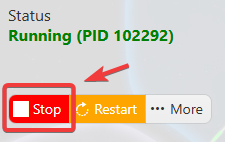
This helps prevent configuration changes from being overwritten or reverted to their default values.
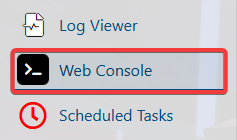
3. Navigate to the Web Console tab.
4. Execute the command corresponding to your target setting.
| Command | Description |
|---|---|
settings ForcedPvP 1 |
Toggles PvP on. |
settings ForcedPvP 0 |
Toggles PvP off. |
5. Once you have finished editing the settings, click the Save button to apply the changes to your server.