
This guide will show you how to optimize Zombie Settings for your HumanitZ Server
Order a HumanitZ Server today with Citadel Servers
Zombies are at the heart of the survival experience in HumanitZ, and the way they are configured can have a major impact on how your server feels to play. Whether you want to create a tense survival environment where every encounter is dangerous or a more relaxed experience where players have time to explore, gather resources, and build their base, adjusting the right zombie settings can help you achieve the experience you have in mind. For server owners and administrators, finding the right balance is about more than simply increasing or decreasing the number of zombies. Zombie-related settings can influence how frequently enemies appear, how challenging encounters become, and how much pressure players face while exploring the world. Settings that are too aggressive can make progression frustrating, especially for new players, while settings that are too forgiving may remove much of the tension that makes a zombie survival game enjoyable. Optimizing these settings is particularly important when hosting a server for a group of players with different playstyles. A small group of experienced survivors may enjoy higher zombie populations and tougher encounters, while a casual community may prefer fewer threats and a more forgiving progression curve. By carefully adjusting the available server configuration options, you can create a difficulty level that matches your community and keeps the gameplay engaging over the long term. In this guide, we’ll walk through the key zombie settings available for your HumanitZ server and explain what they do, how they can affect gameplay, and what you should consider when changing them. We’ll also cover practical approaches for balancing zombie difficulty and population so you can avoid making your server unnecessarily punishing or too easy. Whether you’re setting up a new HumanitZ server or looking to fine-tune an existing one, understanding these settings will give you greater control over the survival experience. With the right configuration, you can build a server that provides the challenge, pacing, and atmosphere your players are looking for.
Customizing Zombie Settings
1. Log in to your Game Control Panel and navigate to your service.
2. Before making any changes, ensure that your server is fully stopped.
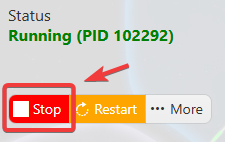
This helps prevent configuration changes from being overwritten or reverted to their default values.
3. Navigate to the Configuration Files tab to access your server’s configuration settings.
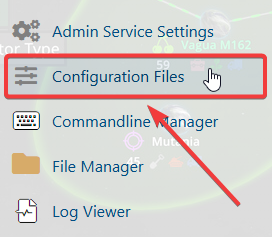
4. In the Configuration Files section, locate the gameserversettings.ini file, then click Config Editor next to it to open the configuration settings.

5. Locate the Zombie Settings section and configure the available options according to your preferred gameplay experience.

6. Once you have finished editing the settings, click the Save button to apply the changes to your server.

If you prefer to modify the server name directly within the configuration file instead of using the UI, click Text Editor next to Config Editor and make your changes there.

Using the Text Editor allows you to preserve custom configurations, such as installed mods and custom scenarios, without having them overwritten or affected by the preset settings in the Config Editor.
