

This guide will show you how to configure Permadeath on your HumanitZ Server
Order a HumanitZ Server today with Citadel Servers
Permadeath can add a much higher level of tension and challenge to a HumanitZ server by making every encounter with the infected, hostile survivors, and the environment significantly more dangerous. Unlike standard gameplay, where players may have opportunities to recover from death and continue using their characters, a server configured for permadeath can make death a permanent consequence. This creates a more immersive survival experience where players need to carefully manage their resources, plan their journeys, and think twice before taking unnecessary risks. For server owners, enabling permadeath is an effective way to create a more hardcore survival environment for players who want a greater sense of progression and consequence. However, configuring the setting correctly is important, as an incorrect server configuration may prevent the option from taking effect or cause players to have an experience different from what the server owner intended. In this guide, you’ll learn how to configure Permadeath on your HumanitZ server, where to find the relevant server settings, how to apply the changes, and how to verify that the configuration is working correctly. We’ll also cover important considerations before enabling the feature, including how it can affect player characters and why you should communicate the change to everyone playing on the server. Whether you’re setting up a new HumanitZ server or modifying an existing one, the steps below will help you configure Permadeath properly and create a more challenging survival experience for your community.
Configure Permadeath Settings on Your HumanitZ Server
1. Log in to your Game Control Panel and navigate to your service.
2. Before making any changes, ensure that your server is fully stopped.
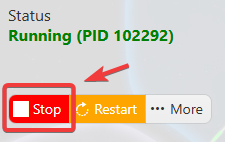
This helps prevent configuration changes from being overwritten or reverted to their default values.
3. Navigate to the Configuration Files tab to access your server’s configuration settings.
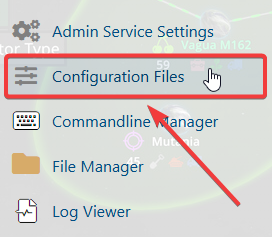
4. In the Configuration Files section, locate the gameserversettings.ini file, then click Config Editor next to it to open the configuration settings.

5. Locate Permadeath, select the desired setting based on your server’s preferred gameplay experience.
Off - Disabled
Individual - Reset when the host dies
All - Reset when any player dies
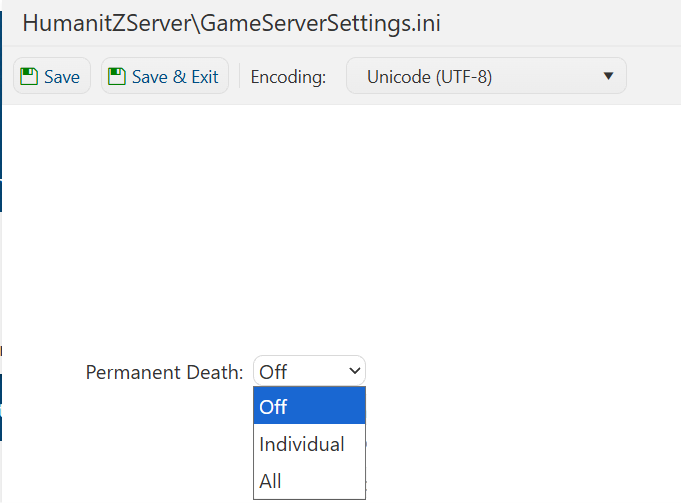
6. Once you have finished editing the settings, click the Save button to apply the changes to your server.

If you prefer to modify the server name directly within the configuration file instead of using the UI, click Text Editor next to Config Editor and make your changes there.
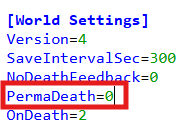
Using the Text Editor allows you to preserve custom configurations, such as installed mods and custom scenarios, without having them overwritten or affected by the preset settings in the Config Editor.
