
This guide will show you how to Turn Off In-Game Voice Chat in your HumanitZ Server
Order a HumanitZ Server today with Citadel Servers
Voice chat can be a useful feature in HumanitZ, allowing players to communicate quickly and coordinate their actions while exploring, gathering resources, and surviving the dangers of the game world. However, voice communication may not be suitable for every server. Server owners may prefer to create a quieter, more immersive environment, limit communication to text chat, or use an external communication platform such as Discord instead. If you manage a HumanitZ server and want greater control over how players communicate, you can turn off the game's built-in voice chat through the server configuration. Disabling in-game voice communication prevents players from using the server's voice chat feature while leaving other gameplay and server functions unaffected. This can be particularly useful for private communities, role-playing servers, or servers that have established their own communication rules. It can also help reduce unwanted voice communications and give administrators more control over the overall player experience. In this guide, we'll walk you through how to turn off in-game voice chat on your HumanitZ server. We'll cover where to find the relevant server setting, how to disable the feature, and what to do after saving the configuration to ensure the change takes effect. By following these steps, you can quickly adjust your server's communication settings and create a gameplay environment that better matches your community's preferences.
Turning Off Voice Chat on Your HumanitZ Server
1. Log in to your Game Control Panel and navigate to your service.
2. Before making any changes, ensure that your server is fully stopped.
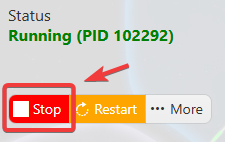
This helps prevent configuration changes from being overwritten or reverted to their default values.
3. Navigate to the Configuration Files tab to access your server’s configuration settings.
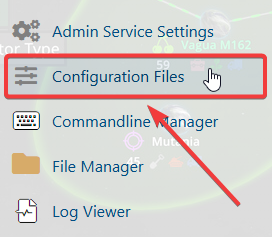
4. In the Configuration Files section, locate the gameserversettings.ini file, then click Text Editor next to it to open the configuration settings.

5. Locate the VoiceChat parameter and set its value to false to disable in-game voice chat. Text chat will remain enabled and available to players.
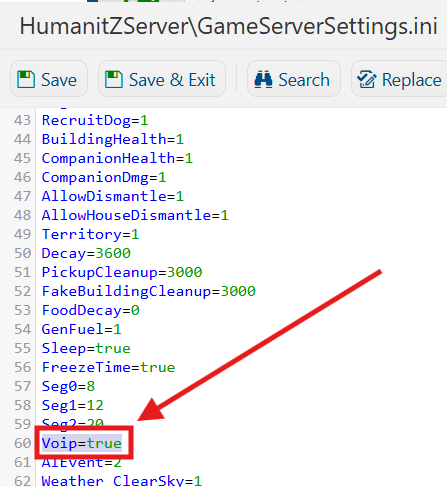
6. Once you have finished editing the settings, click the Save button to apply the changes to your server.