
This guide will show you how to Hide Player Death Notifications on your HumanitZ Server
Order a HumanitZ Server today with Citadel Servers
Managing the way information is displayed on your server can have a significant impact on the overall gameplay experience. In HumanitZ, player death notifications can provide useful information by letting everyone know when another player has died. However, not every server owner wants these messages to appear in chat or be visible to all players. Whether you are running a private server, creating a more immersive survival experience, or simply want to reduce unnecessary chat notifications, hiding player death messages can help keep your server’s communication cleaner and less distracting. Disabling death notifications can be particularly useful for servers that prioritize immersion and exploration. Instead of constantly receiving system messages whenever a player dies, players can focus on surviving the environment, managing resources, completing objectives, and interacting with others. It can also make deaths feel more consequential by preventing the entire server from immediately receiving a notification about what happened. Fortunately, HumanitZ server settings can be adjusted to control how certain gameplay notifications are displayed. Depending on your server configuration and the hosting environment you are using, the relevant option may be available through the server configuration files or your hosting provider’s server management panel. In this guide, we’ll walk you through how to hide player death notifications on your HumanitZ server, explain where to find the appropriate setting, and cover what you should check if the notifications continue to appear after making the change. By the end, you’ll be able to configure your server to provide a quieter and more immersive gameplay experience for your community.
Disabling Player Death Notifications on your HumanitZ Server
1. Log in to your Game Control Panel and navigate to your service.
2. Before making any changes, ensure that your server is fully stopped.
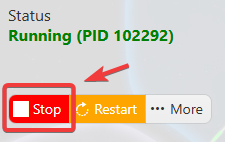
This helps prevent configuration changes from being overwritten or reverted to their default values.
3. Navigate to the Configuration Files tab to access your server’s configuration settings.
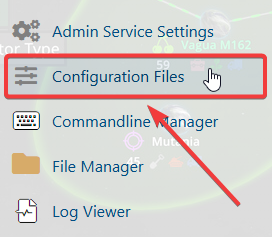
4. In the Configuration Files section, locate the gameserversettings.ini file, then click Config Editor next to it to open the configuration settings.

5. Locate the No Death Feedback setting, then select Disabled from the dropdown menu to turn off player death notifications.
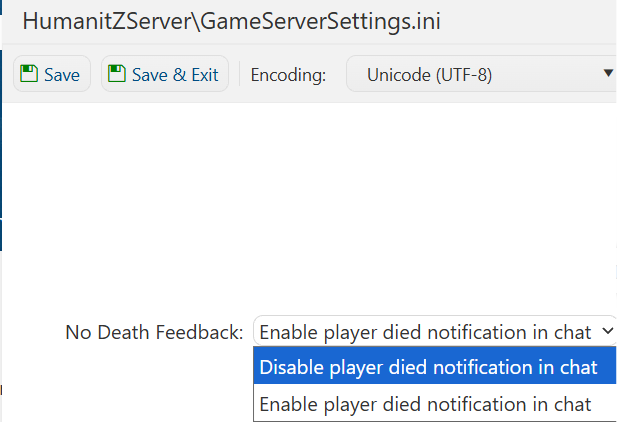
6. Once you have finished editing the settings, click the Save button to apply the changes to your server.

If you prefer to modify the server name directly within the configuration file instead of using the UI, click Text Editor next to Config Editor and make your changes there.
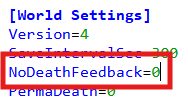
Using the Text Editor allows you to preserve custom configurations, such as installed mods and custom scenarios, without having them overwritten or affected by the preset settings in the Config Editor.
