
This guide will show you how to Configure Weather Conditions on your HumanitZ Server
Order a HumanitZ Server today with Citadel Servers
HumanitZ provides a range of server settings that allow you to customize various aspects of the gameplay experience. Weather conditions are one of these settings, giving you the flexibility to adjust how weather behaves on your server. In this guide, we’ll walk you through the steps to configure the weather conditions on your HumanitZ server.
(Note: If you change the Starting Season, it is recommended to create a new save for the changes to take effect properly.)
Changing Weather Condition Settings
1. Log in to your Game Control Panel and navigate to your service.
2. Before making any changes, ensure that your server is fully stopped.
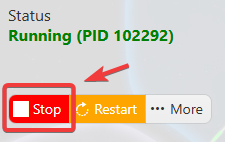
This helps prevent configuration changes from being overwritten or reverted to their default values.
3. Navigate to the Configuration Files tab to access your server’s configuration settings.
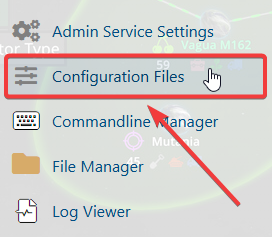
4. In the Configuration Files section, locate the gameserversettings.ini file, then click Text Editor next to it to open the configuration settings.

5. Locate the Weather Condition parameters and set the weather frequency to a value between 0 and 4. The current season determines which weather types are available to spawn.
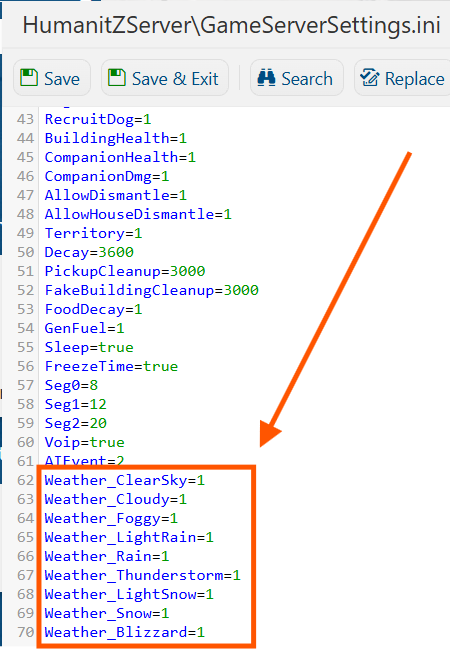
6. Once you have finished editing the settings, click the Save button to apply the changes to your server.