

This guide will show you how to set up a Case‑Opening Simulator on your S&Box Server
Creating a case‑opening simulator on your S&Box server is a great way to add excitement, progression, and replayability to your game mode. Whether you’re aiming to replicate the thrill of randomized loot, introduce cosmetic rewards, or build a full economy system, a case‑opening feature gives players a satisfying sense of anticipation and reward. Because S&Box is built with flexibility in mind, you have full control over how cases work, from item rarity and animations to server‑side logic and UI design. This guide walks you through the essential steps to set up a case‑opening simulator on your server, ensuring your system is both functional and secure while giving players a polished, engaging experience.
1. Log in to your Game Control Panel.
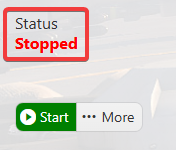
2. Make sure your server is fully stopped before making any changes.
3. Navigate to the Commandline Manager Tab.
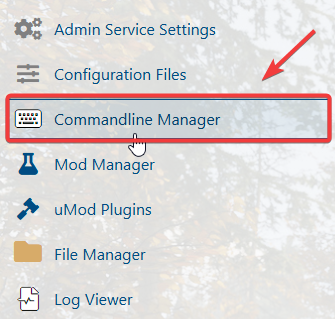
4. Open the Commandline Manager, then click Modify beside the Custom Gamemodes command line. Set the Gamemode to run field to lavagame.multis_cases.
Keep the Load Map field empty so the server loads the game’s included map.

Click the Apply button to save the changes.
5. Start the server to launch the new map on your server.
Did the above information not work for you?
Please click here to contact our support via a ticket.