

This guide will show you how to become an Admin on your Unreal Tournament 2004 Server.
Click here to order your Unreal Tournament 2004 server with Citadel Servers today!
Running your own Unreal Tournament 2004 (UT2004) server can be a rewarding experience, especially if you want to manage matches, enforce fair play, or customize gameplay for your community. To do this effectively, you’ll need administrator privileges. Becoming an admin gives you control over the server, allowing you to kick or ban disruptive players, change maps, adjust game settings, and maintain a smooth multiplayer environment.
Becoming an Admin on your Unreal Tournament 2004 Server (via Web Administration)
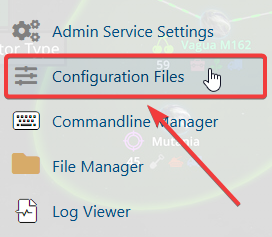
1. Log in to your Game Control Panel and navigate to your service.


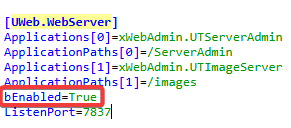
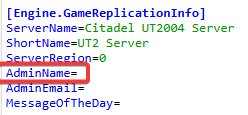
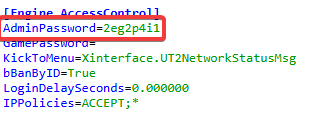

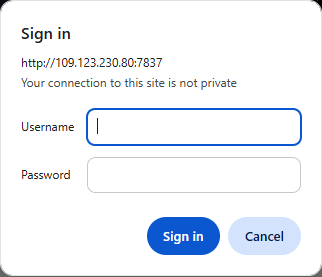
When you open the WebAdmin interface in your browser, it will display a login page where you can enter the AdminName and AdminPassword you defined earlier. It should look something like this:
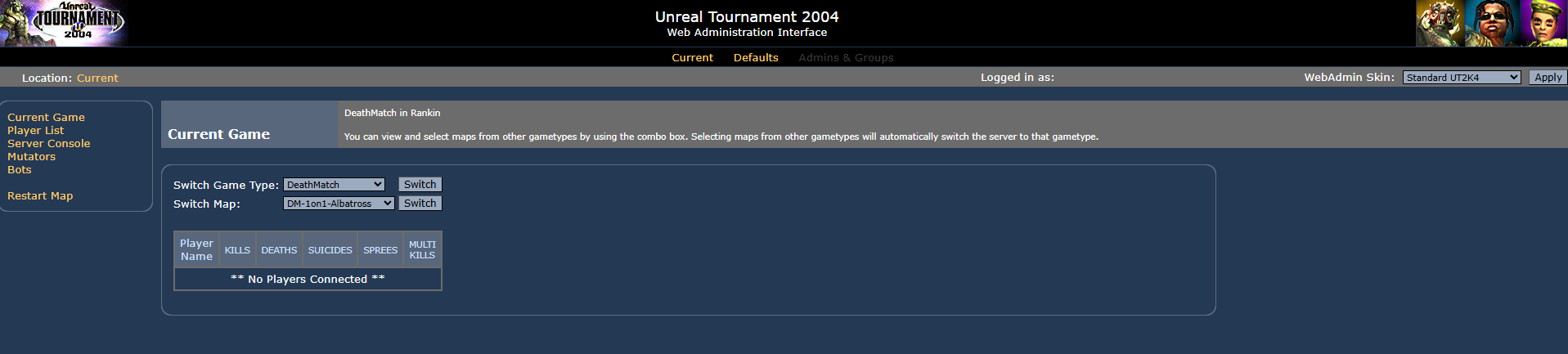
After successfully signing in, the system will present the Web Administration interface, giving you access to all server management tools and configuration options.
1. Log in to your Game Control Panel and navigate to your service.
7. Launch the game and join the server.
8. Open the console (tilde key ~) and type:
adminlogin [yourusername] [yourpassword]
9. Once logged in, you can issue administrative commands directly through the in-game console.
Common UT2004 Admin Console Commands
| Command | Description |
|---|---|
adminlogin [password] |
Logs in as an administrator using the password you set in the configuration. |
adminlogout |
Logs out of administrator mode. |
admin kick [playername] |
Removes a player from the server. |
admin kickban [playername] |
Bans a player based on their IP address. |
admin switchlevel [mapname] |
Changes the current map. |
admin switchlevel [mapname?game=gametype?mutator=mutator] |
Changes the map, game type, and applies mutators simultaneously. |
admin say [message] |
Broadcasts a message to all players on the server. |
admin set [class variable value] |
Changes server settings live. Example: admin set Engine.GameInfo bWeaponStay True. |
Server Management & Game Control
| Command | Description |
|---|---|
admin set UWeb.Webserver bEnabled True |
Enables the web-based administration interface. |
admin set UWeb.Webserver bEnabled False |
Disables the web-based administration interface. |
addbots [number] |
Adds the specified number of bots to the match. |
killpawns |
Removes all bots and players from the server (except yourself). |
lock |
Locks the server, preventing new players from joining. |
unlock |
Unlocks the server, allowing new players to join again. |
Player & Gameplay Manipulation
| Command | Description |
|---|---|
admin god |
Enables God Mode, granting invincibility. |
admin fly |
Enables Flying Mode, allowing free movement in the air. |
admin ghost |
Enables Ghost Mode, letting you pass through walls and obstacles. |
admin loaded |
Grants all weapons with maximum ammunition. |
admin allammo |
Refills ammunition for all weapons currently held. |
Common Server Settings
These variables can be adjusted using the admin set command to fine-tune gameplay:
| Setting | Description | Example |
|---|---|---|
GameSpeed |
Controls the overall speed of the game. Default is 1.0. |
admin set GameInfo GameSpeed 1.2 (20% faster) |
GoalScore |
Sets the score limit required to win the match. | admin set GameInfo GoalScore 50 |
TimeLimit |
Defines the maximum duration of the match in minutes. | admin set GameInfo TimeLimit |
Did the above information not work for you?
Please click here to contact our support via a ticket.