
This guide will show you how to Switch Game Modes on your Unreal Tournament 2004 Server.
Click here to order your Unreal Tournament 2004 server with Citadel Servers today!
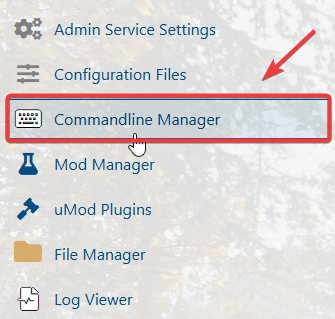
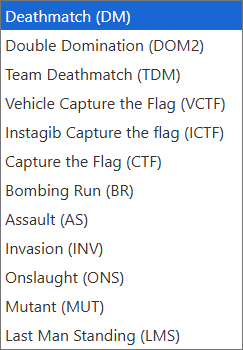
Running a Unreal Tournament 2004 (UT2004) server isn’t just about hosting matches. It’s about tailoring the gameplay experience to fit your community’s style. One of the most powerful ways to customize your server is by switching between different game modes. UT2004 offers a wide variety of modes, from the fast-paced chaos of DeathMatch to the team-focused strategy of Capture the Flag, and the large-scale battles of Onslaught. By learning how to change the game mode, you gain full control over the type of matches your server hosts. This can be done through configuration files, the Commandline Manager, or the WebAdmin interface, giving you flexibility depending on how hands-on you want to be. Whether you’re setting up a permanent rotation or just want to experiment with different styles of play, switching game modes ensures your server stays fresh, engaging, and aligned with your players’ preferences.
Changing Game Modes on your Unreal Tournament 2004 Server
1. Log in to your Game Control Panel and navigate to your service.


Please click here to contact our support via a ticket.