

This guide will help you How to Configure Group Settings on your Path of Titans Server
Click here to order your Path of Titans server with Citadel Servers today!
Group settings play an important role in shaping the multiplayer experience on your Path of Titans server. These settings determine how players can form groups, how many players or dinosaurs can participate in a group, and what restrictions apply when grouping together. By customizing these options, server owners can establish a more balanced multiplayer environment that aligns with their preferred gameplay style and community rules. Whether you're running a small private server for friends, managing a large public community, or creating a competitive survival environment, configuring your group settings allows you to control how players interact and cooperate with one another. For example, you may want to increase or decrease the maximum group size, adjust grouping restrictions, or customize other group-related parameters to make multiplayer encounters more challenging or encourage players to coordinate more effectively. Path of Titans provides configurable server parameters that allow administrators to modify various aspects of the grouping system. These options can be adjusted through your server's configuration files, giving you greater control over how group formation and membership work within your world. Understanding what each parameter does is essential to ensuring that your changes produce the intended gameplay experience without introducing unnecessary restrictions or disrupting existing group interactions. In this guide, we'll walk you through how to configure group settings on your Path of Titans server using the Citadel Servers Game Panel. We'll also explain where to locate the relevant configuration parameters and how to adjust their values according to your preferences. By following these steps, you can customize your server's group mechanics, establish suitable group limitations, and create a multiplayer experience that better suits your community.
Modify Group Rules and Restrictions
1. Log in to your Game Control Panel.
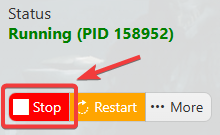
2. Before making any modifications, stop the server from running by clicking the Stop button.
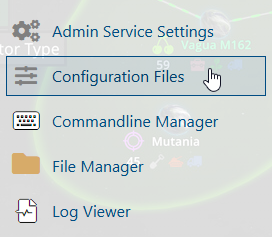
3. Navigate to Configuration Files.
4. In the Configuration Files section, locate the Game.ini file and click Text Editor to open and edit the file.

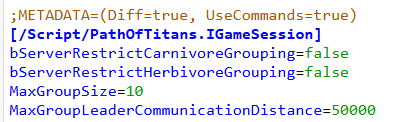
5. In the configuration file, locate the Group Settings parameters listed below.
Adjust the values of these parameters according to your preferences to customize the player grouping system on your server.
(Note: If these parameters are not present in the configuration file, you can manually add them under the [/Script/PathOfTitans.IGameMode] section.)
| Setting | Description |
|---|---|
bServerRestrictCarnivoreGrouping=false |
When set to true, carnivores can only form groups with the same species. |
bServerRestrictHerbivoreGrouping=false |
When set to true, herbivores can only form groups with the same species. |
MaxGroupSize=10 |
Sets the maximum slots allowed for player groups. |
MaxGroupLeaderCommunicationDistance=50000 |
Sets the distance, in meters, that players can see other group members. |
6. After editing, click the Save button to apply the changes.

