
In 7 Days to Die, the Third-Person View setting allows server owners to control which camera perspectives players can use while playing on their multiplayer server. Unlike the traditional first-person perspective, third-person view provides players with a wider perspective of their character and surroundings, making it easier to observe nearby environments, appreciate character appearances, and experience combat from a different angle. By configuring the Third-Person View settings, you can customize the camera restrictions to match your server's preferred gameplay style. You can allow players to freely switch between first-person and third-person perspectives, restrict everyone to first-person view for a more immersive survival experience, or enforce third-person view for all players. This is particularly useful for server owners who want to maintain consistent gameplay rules and provide a specific experience for their community. In this guide, we'll walk you through how to locate and modify the CameraRestrictionMode setting on your 7 Days to Die server. Whether you want to preserve the traditional first-person survival experience, allow players to enjoy both perspectives, or enforce third-person gameplay, adjusting this configuration gives you greater control over your server's camera restrictions. Before making any changes, we recommend stopping your server and creating a backup of your existing configuration file. Once you've updated the desired value, save the configuration file and restart your server to apply the changes. Players will then be subject to the selected camera restriction when connecting to your server.
Modifying the Camera View Settings
1. Log in to your Game Control Panel.
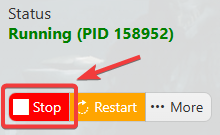
2. Before making any modifications, stop the server from running by clicking the Stop button.
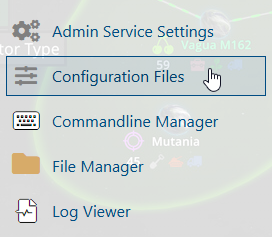
3. Navigate to Configuration Files.
4. In the Configuration Files section, locate the serverconfigmain.xml file and click Text Editor to open and edit the file.

5. In the <!-- Misc --> line, modify the CameraRestrictionMode property and enter the desired value to configure your server's third-person view restrictions.
0 - Freely use both first-person view and third-person view.
1 - Restrict to use only the first-person view.
2 - Restrict to use only the third-person view.

6. After editing, click the Save button to apply the changes.

