

The Language Tag setting on your 7 Days to Die server allows you to specify the primary language associated with your server. Configuring this setting can help identify the language used by your server and make it easier for players who speak the same language to find and recognize your server when browsing the server list. This is particularly useful for communities that cater to specific language groups or prefer to maintain a consistent language environment for their players. By modifying the Language Tag setting, you can customize your server's language designation to better reflect your community's preferred language. Whether you are hosting a server for English-speaking players, creating a dedicated environment for an international community, or organizing a private server for friends who speak a particular language, setting the appropriate language tag can help communicate your server's intended audience. The process is straightforward and can be completed by editing your server's configuration file. In this guide, we will walk you through locating the appropriate configuration file, identifying the Language property, and updating its value to your preferred language. Once the changes have been saved and your server has been restarted, the updated language designation will be applied to your server.
Please note: The Language setting determines the primary language displayed for your server in the server browser. It does not automatically translate the game's interface, server messages, or in-game content for individual players. For the setting to work correctly, use the English name of your preferred language (for example, German instead of Deutsch).
Selecting a Language Tag
1. Log in to your Game Control Panel.
2. Before making any modifications, stop the server from running by clicking the Stop button.

3. Navigate to Configuration Files.
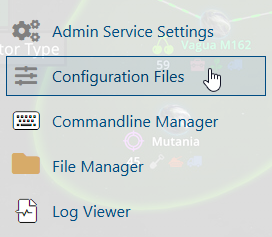
4. In the Configuration Files section, locate the serverconfigmain.xml file and click Text Editor to open and edit the file.

5. In the file, locate the <!-- Server representation --> section, and select the language according to your preferred server configuration.

(Note: It is recommended to use the standard English name of the selected language.)
6. After editing, click the Save button to apply the changes.

