

This guide will help you learn how to install LuckPerms Mod on your Hytale Server.
Click here to order your Hytale server with Citadel Servers today!
Managing permissions on a multiplayer server can be tricky, especially when you want to give players the right access without opening the door to chaos. That’s where LuckPerms comes in. LuckPerms is a powerful and flexible permissions plugin that makes it easy to control what players can and can’t do on your Hytale server. In this guide, we’ll walk through the process of installing LuckPerms step by step. Whether you’re setting up your first server or fine-tuning an existing one, you’ll learn how to get LuckPerms running smoothly so you can focus on building a fun, fair, and well-organized community. By the end, you’ll have a reliable permissions system that keeps your server balanced and enjoyable for everyone.
Installing LuckPerms Mod on your Hytale Server
1. Download the LuckPerms Mod here.
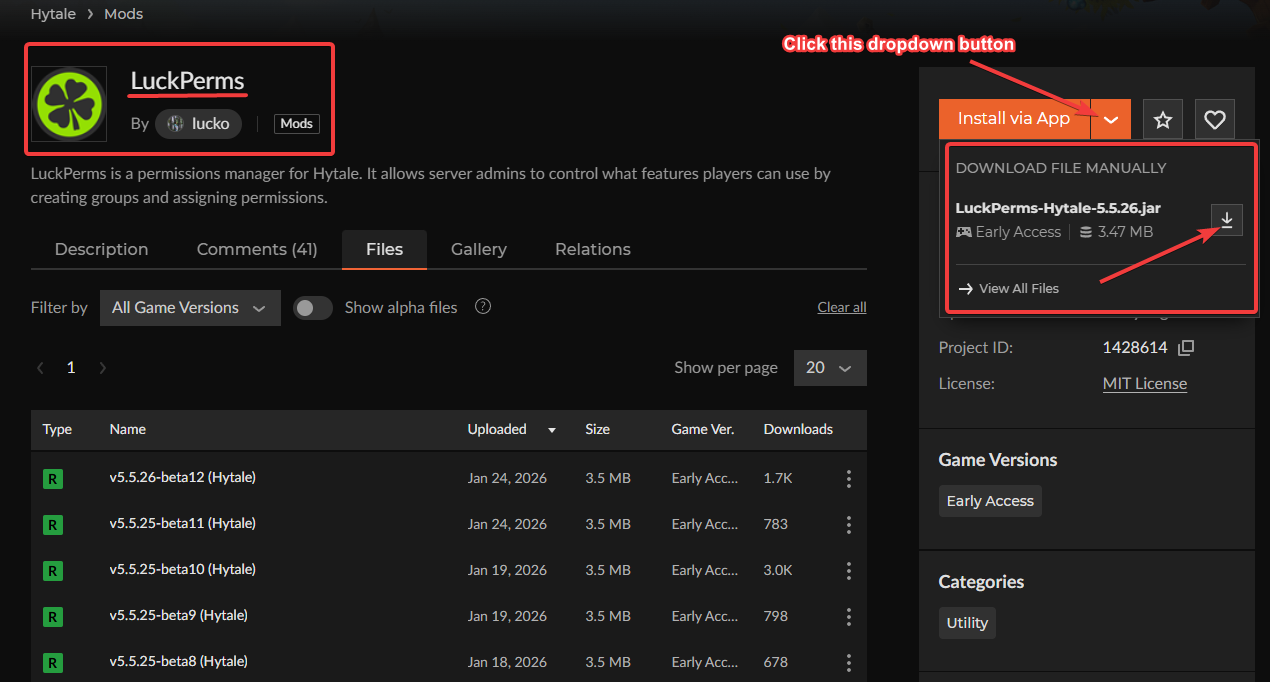
2. Log in to your Game Control Panel and navigate to your service.
3. Before making any modifications, stop the server from running by clicking the Stop button.

4. Navigate to the File Manager Tab.
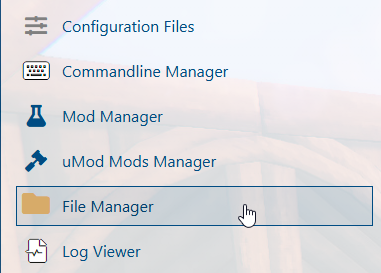
5. From the File Manager tab, look for the mods folder and upload the .jar file of the LuckPerms mod.
For uploading the file, we highly recommend using FTP such as Filezilla. For more information, you can check our detailed guide here.
6. Ensure that the LuckPerms mod is running by checking the web-console tab.

7. To configure LuckPerms directly in-game, use the following command:
/lp user <PlayerName> permission set luckperms.* trueThis command grants the specified player full access to all LuckPerms permissions, making it easy to manage roles and settings right from within the server.
NOTE
To grant a player access to all commands, use the following command:
/lp user <playername> permission set *
This level of permission should only be assigned to trusted admins or server owners, as it gives complete control over the server.
8. To open the LuckPerms web editor, simply enter:
/lp editor
This command will generate a link to the LuckPerms editor, where you can easily manage and customize permissions through a user-friendly interface.
9. Open the Generated Editor Link and copy the command link that will appear in your browser.

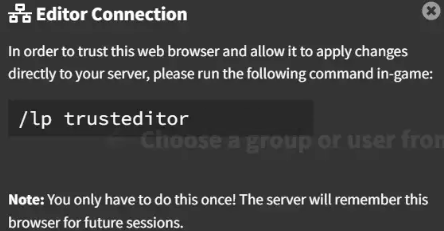
10. Paste the link to the console in-game.

11. Once you’ve connected, head back to the LuckPerms editor and configure the permissions you want for your players or groups, then hit apply.
Creating an Admin Group with LuckPerms on Your Hytale Server
1. Log in to your Game Control Panel and navigate to your service.
2. Before making any modifications, stop the server from running by clicking the Stop button.
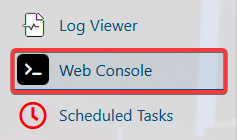
3. Navigate to the Web-Console Tab.
4. Open the LuckPerms web editor by simply entering this command:
/lp editor
5. Open the Generated Editor Link and copy the command link that will appear in your browser.
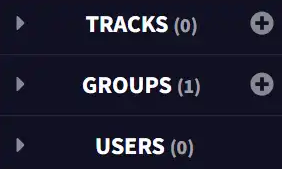
6. On the Groups tab, click the + (plus) icon to create a new group. This will let you define a fresh set of permissions and roles that you can customize for your server.

7. In the Group Name field, input admin.
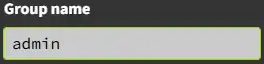
8. Fill in any additional details you’d like, then click Add Group to finalize the creation.
| Option | Description |
| Group name | The code name of the group. |
| Display name | Shows how Luckperms displays the group. |
| Weight | The priority level compared to other groups. |
| Parent | Inherits permissions from another group. |
| Prefix/Suffix | Inserts tags before or after a player's name. |
This will add your new group to the list, ready for you to customize with specific permissions.
9. In the Groups tab, select admin from the list. In the Add permissions field, enter the following: hytale.*
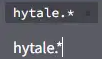
NOTE: Using the hytale.* command will grant the group all available permissions. For tighter control, it’s best to assign specific permissions manually so you can customize exactly what each group can do.
10. Click the + Add button to include the new permission or setting in your group.

11. In the Users tab, select the player you want to manage. If the user doesn’t appear in the list, you can manually assign them to a group by entering the add parent command in the server console.
12. Next to Parent Groups, click the + (plus) icon to add a new parent group, then choose Admin. After adding the Admin group, click Apply.

This allows you to assign the user to an existing group, giving them the permissions and roles defined for that group.
13. If prompted, copy the apply link and paste it into the server console.
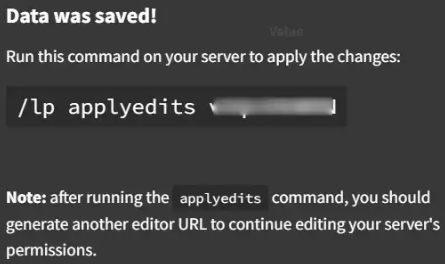
This will apply the changes you made in the LuckPerms editor directly to your Hytale server.
Essential LuckPerms Commands for Server Admins
| Command | Description |
/lp user <playername> parent add <group> |
Adds the player to the group permissions. |
/lp user <playername> parent remove <group> |
Removes the player from the group permissions. |
/lp user <playername> permission set <permission> |
Grants permission to the player. |
/lp user <playername> permission unset <permission> |
Removes the permission from the player. |
/lp group <group> permission set <permission> |
Grants permission to the group. |
/lp group <group> permission unset <permission> |
Removes the permission from the group. |
Did the above information not work for you?
Please click here to contact our support via a ticket.