This guide will show you how to Change Maps on your Unreal Tournament 99 Server.
Click here to order your Unreal Tournament 1999 server with Citadel Servers today!
Changing maps on your Unreal Tournament 99 server is one of the core tasks of managing gameplay flow, customizing player experience, and keeping matches fresh. Whether you’re rotating through classic arenas, testing new custom maps, or setting up a specific environment for events or mods, understanding how to switch maps efficiently ensures your server runs smoothly and stays engaging for players. UT99’s server tools offer several ways to control map selection, from in‑game commands to control panel options and configuration files. Each method has its own advantages depending on how hands‑on you want to be and how your server is set up. This section walks you through the most reliable approaches, explains when to use each one, and highlights common pitfalls to avoid so your server transitions cleanly between maps without interruptions. By the end, you’ll be able to change maps confidently, adjust your rotation to fit your server’s style, and keep your UT99 matches running exactly the way you want.


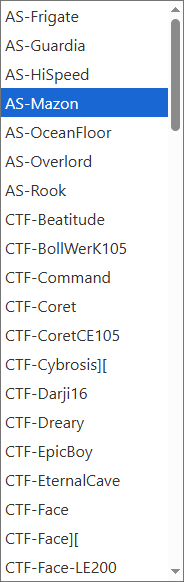
1. Download the maps you plan to upload to your server so they’re ready for installation.
Please click here to contact our support via a ticket.