How to Host a Motor Town: Behind the Wheel Server – Step-by-Step Guide for Drivers
If you’re ready to take full control of your Motor Town experience, hosting your own server is the perfect way to do it. You can customize the world, invite your friends, and build the driving, trucking, taxi, and racing environment you want.
This guide explains how to host your own server and why Citadel Servers is a great partner for your setup.
Step 1: Pick a Reliable Hosting Provider
Motor Town: Behind the Wheel includes open-world driving, AI traffic, job systems, and multiplayer progression — all of which require a stable and smooth server.
When selecting your host, look for:
Performance: Strong CPUs and SSD/NVMe storage ensure stable framerates, fast loading, and smooth traffic simulation.
Network Quality: Low latency is crucial for responsive driving and accurate vehicle synchronization.
Ease of Management: A user-friendly control panel lets you easily adjust server settings, traffic density, rules, and mods.
Support Availability: 24/7 technical support ensures help is always available when needed.
Citadel Servers provides all of these, offering premium performance and stable hosting optimized for open-world multiplayer games.
Step 2: Order Your Hosting Plan
Once you’ve decided to host with Citadel Servers, getting started is simple:
1. Go to the Motor Town: Behind the Wheel hosting page.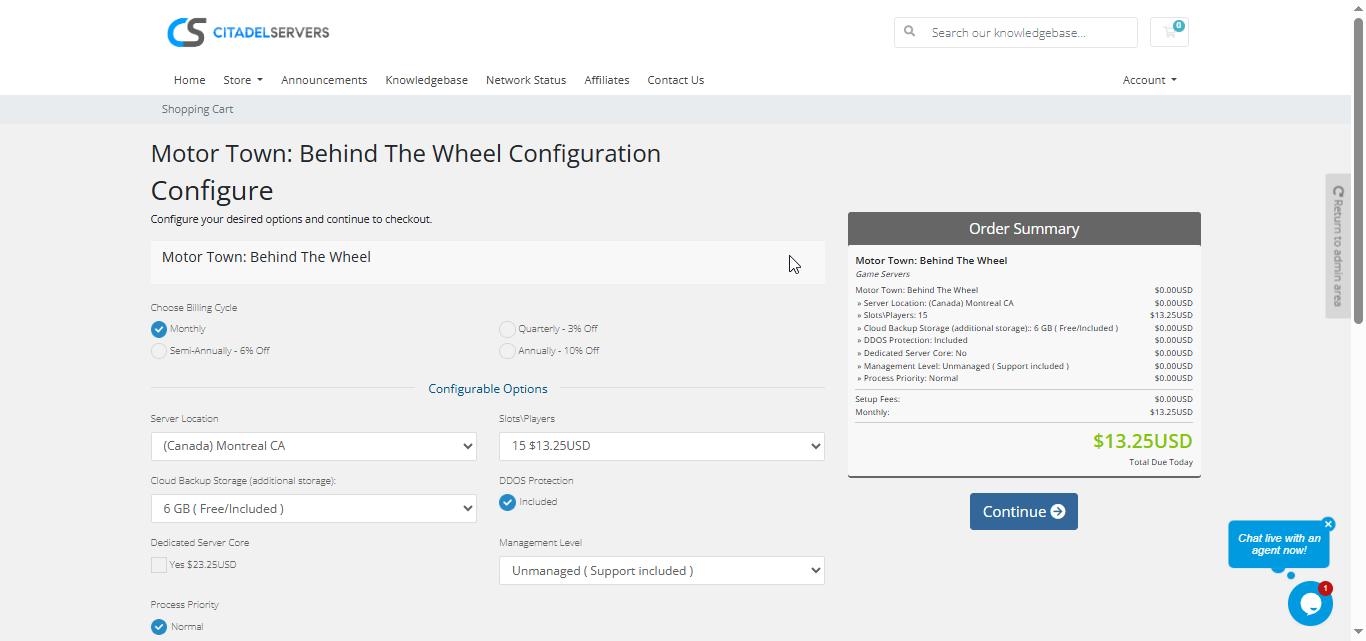
2. Choose how many player slots you want.
3. Pick your server location closest to your player base for the best ping.
4. Select any extras, like process priority, premium support, etc.
5. Proceed to checkout, once payment is confirmed, your server deploys automatically.
You’ll receive an email with your control panel login details and connection info within minutes.
Step 3: Configure Your Server
After your server is deployed, you can customize your driving world:
- Follow our Quick Start Guide
Set your server name, password, and admin list.
Adjust traffic density, speed limits, driving rules, and progression settings.
Enable or disable features like damage, collisions, or AI behavior.
Set preferred job settings for trucking, bus driving, taxi service, racing, and deliveries.
Install mods or custom content through the built-in Mod Manager or upload files via FTP/SFTP.
All configuration options are available directly through the Citadel Control Panel, designed for both casual and advanced server owners.
Step 4: Launch and Play
When your settings are ready, start your server from the panel and invite your friends.
Players can connect via the in-game server browser or by entering the server’s IP and port.
You can monitor activity, manage users, and restart your world at any time, all through the same web interface.
Why Host with Citadel Servers
Hosting Motor Town: Behind the Wheel with Citadel Servers ensures smooth gameplay, responsive driving, and reliable uptime for long play sessions.
What Makes Us Stand Out
Instant Setup: Your server deploys automatically after payment, allowing you to start driving within minutes.
High-Performance Hardware: Dedicated CPU resources and NVMe SSD storage ensure smooth simulation and fast loading.
Global Data Centers: Choose from multiple worldwide locations for the best connection and lowest ping.
Full Access & Mod Freedom: Upload and customize any server files, mods, or configurations.
One-Click Mod Manager: Easily install and manage mods without handling files manually.
Automated Backups & Easy Restarts: Protect your server’s progress with scheduled backups and simple restarts.
24/7 Expert Support: Our technical team is always available to help with any issues that arise.
Your road deserves a strong, stable foundation and Citadel Servers delivers exactly that: performance, control, and reliability for serious drivers and simulation fans.
Order your Motor Town: Behind the Wheel Server now